Table of contents
Imagine the scene: Your school has just purchased a student support subscription or a Flexi-subscription for Clicker or DocsPlus, and you cannot wait to start using it.
You already have a good idea about which learners you’ll be using the software with, you’re aware of some great benefits, and you’re excited to dive in and get started.
So, what’s the next step?
As the training specialist at Crick Software, I’m here to share everything I think schools should know about their training options. I'll also share a few top tips to help make sure your sessions really hit the mark!
Here are my top tips on:
- Deciding which training option will best match your needs
- When to schedule your training
- How to run your training sessions successfully
- Frequently asked questions about our included training
Training options

If you have a student support subscription or a Flexi-subscription, in addition to all the resources available in our Clicker and DocsPlus LearningHubs, you have access to unlimited* online training sessions with our experts.
I understand how difficult it can be to find time for training, especially when school calendars are often full already.
There also never seems to be a good time for staff to take on new information. Coming from the classroom myself, I know that at the end of a school day, the last thing I wanted to do was go to a training session when I had a pile of papers to grade.
That’s why we have created different training options that you can pick from to work around your availability and the needs of your staff.
Here's a breakdown of the training options you can choose from throughout your subscription:
90-minute session
This longer session, great for a teacher in-service day, provides staff with the time to gain the confidence and skills needed to use the software effectively. These sessions include plenty of hands-on time, giving you the chance to explore the software in depth, ask questions, and gain practical knowledge you can apply right away.
Whether you're getting started or looking to deepen your expertise, this training is designed to be engaging, flexible, and impactful.
One-hour session
This training offers a clear and engaging introduction to the software’s key features. It's perfect for helping you feel confident and ready to get started.
Whether you're launching the software for the first time or introducing Clicker or DocsPlus to new staff members, it’s a supportive way to build familiarity and momentum from day one.
If you are more familiar with the software, this session could be used to focus in more depth on any key features which are relevant to the needs of your learners.
Bite-sized training
Our bite-sized training sessions are available in 15, 20, 30, or 45-minute formats and are designed to fit your schedule while delivering maximum impact. Each session focuses on one or two key features, helping you to quickly understand how to start using them effectively in your school.
Perfect for staff meetings or as quick refreshers, these sessions make it easy to build confidence and momentum.
This training can also be scheduled for smaller groups of staff who have a particular feature that is relevant to their grade level or curriculum focus.
Online course
On-demand training is also available to help you familiarize yourself with the software at your own pace. Any member of staff can register for the online course. Staff can complete the modules in the order they choose, at a time that works for them. They will then receive a certificate for each module they complete.

If you're unsure which training option is best for you, the training team would be more than happy to help. Just let them know what you hope to achieve with the session, and they will suggest the most effective option.
It’s also a great opportunity to walk through the session content together and make sure we’re covering the most relevant features and building on what your staff already know.
When to schedule training
You can schedule training at any point in your three-year subscription.
I’d recommend scheduling a training session near the start of your subscription. This helps to introduce the software to your staff and get them up and running effectively.
You can then arrange further training sessions for times that work best for your school. This might be to focus on specific features for select staff members, refresh staff knowledge, introduce new staff to the software, or to focus in more depth on areas relevant to your students’ needs.
How to run your training
We understand that every school is different. So, we design our training sessions to be as flexible as you need them to be.
You can run sessions for your entire school or begin with a small group of key staff - whatever works best for your setting.
Staff can attend as one group in the same room, in smaller groups, or participate individually on their own devices.
Frequently asked questions
What if our subscription includes multiple schools in our district?
Simply share the virtual training link with any staff member using Clicker across your district. This applies whether they're at one school or several schools in your district.
Will the training be recorded?
All training sessions will be recorded, and your trainer will send the recording to you via email following the training. You can share this recording with the staff who attended so they can refresh their knowledge if needed. It can also be shared with new staff or members of staff who were unable to attend on the day. You can download the recording to keep on your school’s system.
Do staff need devices on the day?
This depends on the session! If you have requested hands-on time, staff will need to bring devices with them so they can explore the software.
Make sure your staff bring along the relevant devices. It's super handy for them to practice using the software during the hands-on part of the session.
How does the training take place?
The training included with your subscription is online and run live by one of our expert trainers.
We use Microsoft Teams. Once you’ve scheduled your session, you’ll get an email with a link to join on the day.
What if I need to talk to someone about the training or have other questions?
If you would like to discuss your training with our team to plan content or ask questions, please book a customer care meeting with our training team here.
- The “Get Started” pages on our website for Clicker and DocsPlus have some great resources and tips for implementing the software. This includes an action plan.
- The pre-training checklists are handy to share with the person responsible for IT in your school. This ensures you get the most out of your training sessions: Clicker and DocsPlus.
*Click these links to review the fair use policy for included training: Clicker, DocsPlus.
After their training session, a school reached out for further support on how to guide their students through Clicker’s writing grids to encourage independent writing.
Writing grids are available in Clicker and have been designed to provide writing-specific support for learners of all abilities.
The school could clearly see what a fantastic tool Clicker is, so their teachers wanted more guidance on how to use the different types of writing grids to help students progress from emergent and developing writers into independent writers.
They had the initial idea of a flowchart which could be used by staff to understand how to move students through the writing grids, clearly demonstrating how learners can progress through various stages of scaffolding. Using this idea, I created a flowchart that guides teachers through which Writing Grid to use and when.
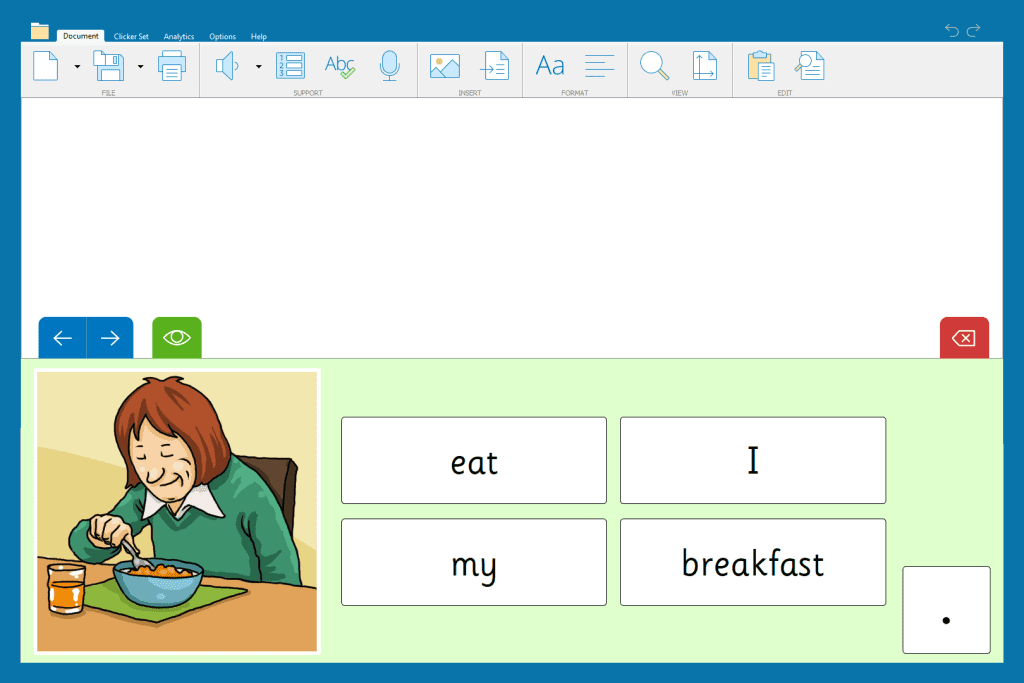
1. Sentence Sets are simple sentence building activities, working on constructing a specific sentence word by word. Sentence Sets are perfect for a student who needs support writing simple sentences with correct word order and punctuation.

2. The student may then move onto Connect Sets which are going to support your developing writers, providing clusters of words to help them build a coherent piece of text. It is still scaffolded writing but gives a greater choice of words.
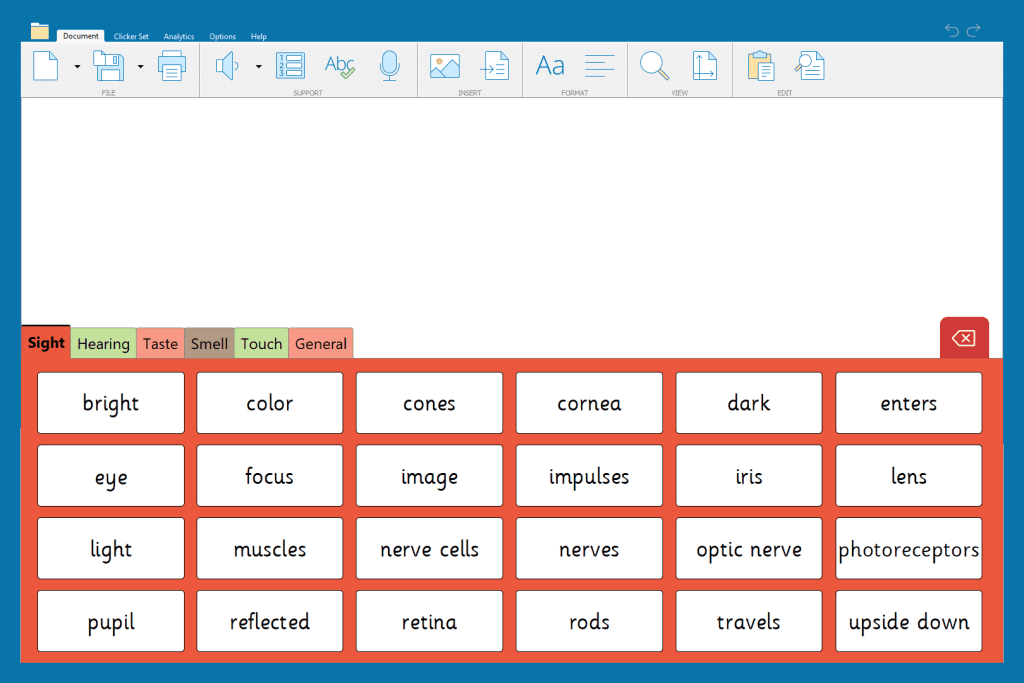
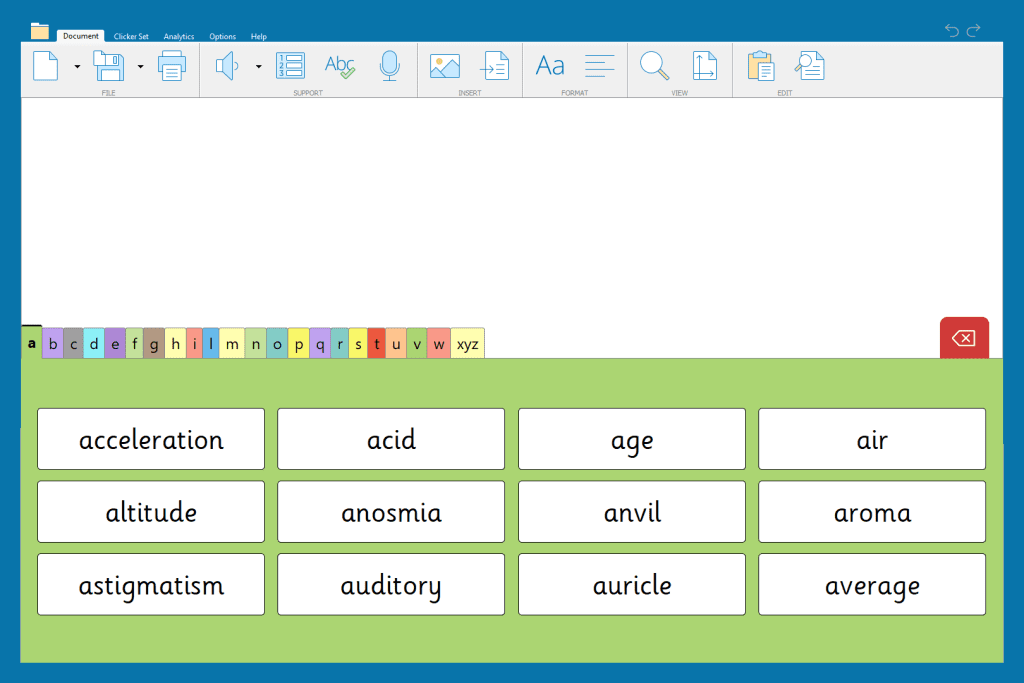
3. Finally, Word Banks are for more independent writers who can form sentences but need vocabulary support. Word Banks give students access to correctly spelled subject-specific vocabulary and provide support when using new vocabulary or difficult words. Word Banks can be organized into topic tabs to help structure a piece of writing or arranged alphabetically to support spelling.
To use the flowchart in your school, download it here.
Clicker’s intuitive word processor, including spell checker, Predictor, and Voice Notes, can be used alongside Clicker’s writing grids to transform a student’s daily writing challenges into achievable targets.
To view our bank of ready-made writing grids, visit LearningGrids. If you would like to edit or create your own writing grids, watch our tutorials.
If you have any questions, contact our Customer Experience team by phone at 203 221 2697 or by email at training@cricksoft.com.
Within a school setting, there are several ways to gather students’ views, feelings, and wishes.
One way to collect this information is through student voice. Student voice may be used to gather a range of ideas about a particular subject, to find out their opinion on a learning experience, or to complete a student’s learning plan.
Clicker Talk Sets are a great resource for this as they offer an alternative way to record for those who struggle to express their ideas or feelings in writing.
Talk Sets enable students to verbally record information and thoughts using picture prompts or verbal cues, developing their oral communication and listening skills.


Students can select a picture and then use the microphone to record their ideas, opinions, or answers.

Clicker Boards are another effective way to record student voice. Adding Voice Notes along with a text cell allows students to share their thoughts and ideas either orally or in a written format. With both Talk Sets and Clicker Boards, students can re-record as many times as they need to which is great for those who lack confidence or students who are learning English as an additional language. You can also use your own pictures as visual clues for students.

By giving them a voice, students are helped to feel safe to express their views and, as a result, they feel valued and listened to. Watch our Talk Set and Clicker Board tutorials to find out how to edit sets from LearningGrids or how to quickly create your own from scratch!
Word Banks are also a great writing resource which can be used to support student voice. You can create tabs to support the structure of an answer as well as to provide prompts.
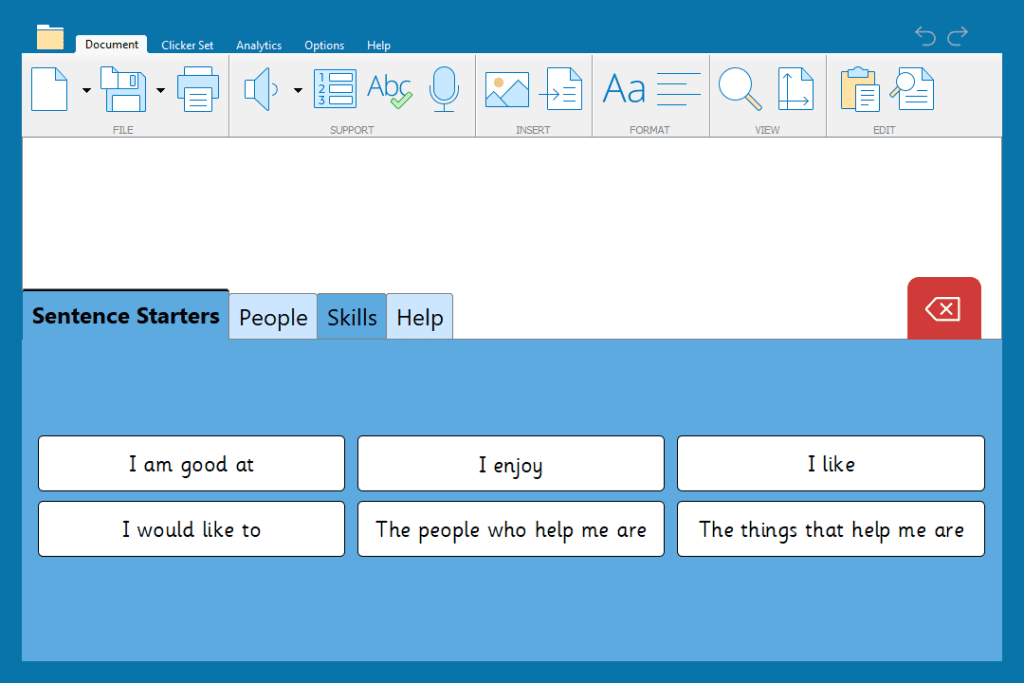
There are hundreds of free ready-made Word Banks available on LearningGrids, and it is quick and easy to edit them to add your own vocabulary. In this example, there is a sentence starter tab to support the beginning of the response and then subsequent tabs to help the students build their sentence.
Watch our tutorial for more support on how to create or edit a Word Bank from LearningGrids.
Providing students with a voice and giving them an opportunity to play an active role in the decisions made within the school positively affects their learning and well-being. To explore other ways that you could be using Clicker to support teaching, learning, and well-being across your school, contact our Customer Experience team at 203 221 2697 or email training@cricksoft.com.