Getting started with DocsPlus
We’re often asked in Customer Care meetings for advice on the best ways to start using DocsPlus, so I recently led a webinar on this very topic!
In this session, we looked at the Quick Start Menu, Smart Tab resources, LearningGrids, and the Document.
I’ve summarized some of the key information we covered below.
The Quick Start Menu
When you first open DocsPlus on a Windows or Mac PC, it will automatically open the Quick Start Menu. From here, you can:
- Choose New Document to start writing with DocsPlus’ support tools.
- Reopen a file you’ve recently had open in DocsPlus from the list on the left-hand side.
- Open the Browse tab to navigate the file explorer.
- Open the LearningGrids Resources tab to navigate the library of ready-made curriculum resources.
In the DocsPlus App, go to the folder icon in the top-left corner and then choose My Files to navigate your device’s file explorer or choose LearningGrids to access the library of ready-made curriculum resources.

Smart Tab resources
Smart Tabs are how we collectively refer to the resources available in DocsPlus. They include:
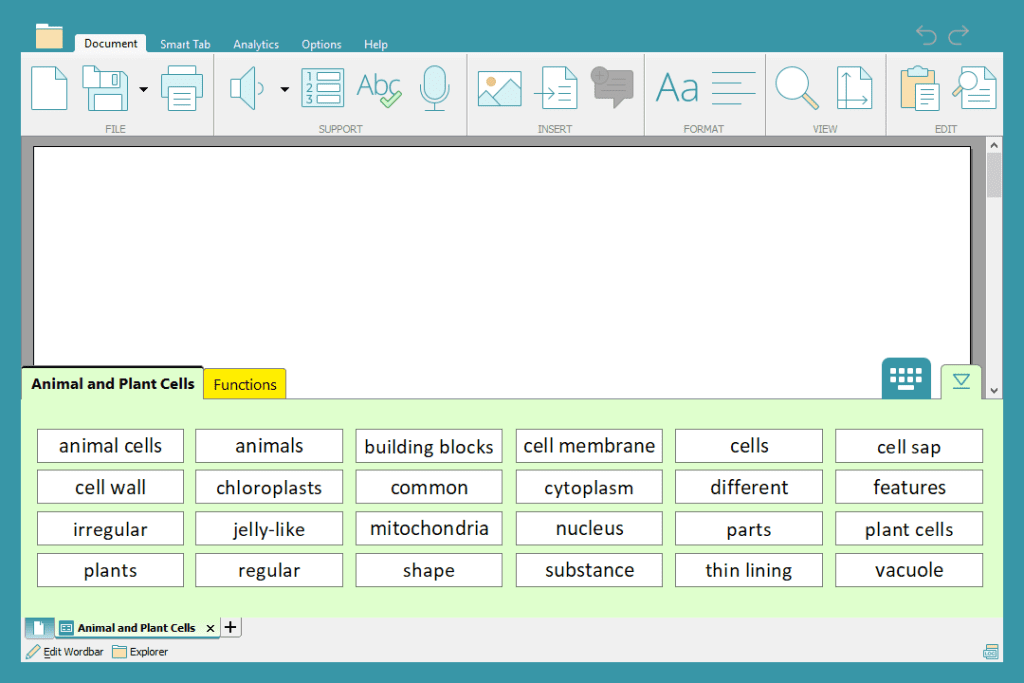
Wordbar
Wordbars offer key vocabulary for students to use in their writing. They’re a great resource for encouraging students to use subject-specific vocabulary or for supporting the structure of an extended piece of work.
WorkSpace
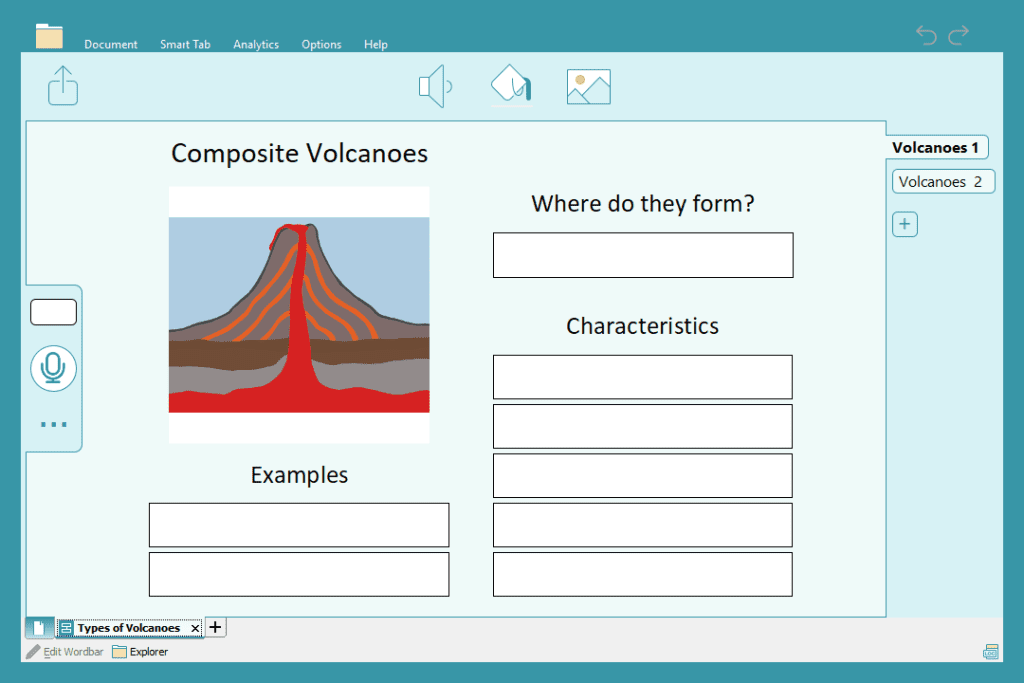
WorkSpace is a visual organizer tool to help students capture and organize their ideas when planning out key information prior to extended writing or exams.
DocReader
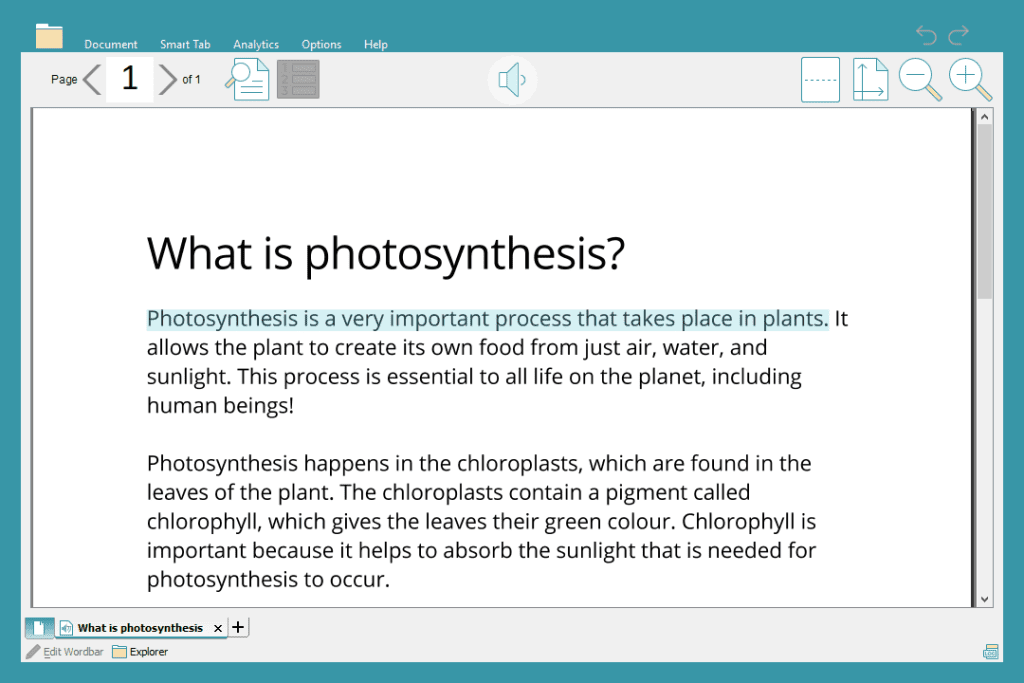
The DocReader allows you to open Microsoft Word or PDF documents in DocsPlus and have them read aloud in a realistic-sounding voice. This is a fantastic tool for enabling students to access the curriculum more independently.
LearningGrids
While you can create your own Smart Tab resources, we have a collection of ready-to-use Wordbars and WorkSpaces available for you to open from LearningGrids.
LearningGrids contains over 1,000 professionally created DocsPlus resources, with new resources added regularly . It’s always best to check what we have here first before you start creating your own!
Use the subject areas to see what’s available in different topic areas and start using any resource by clicking open.

Document
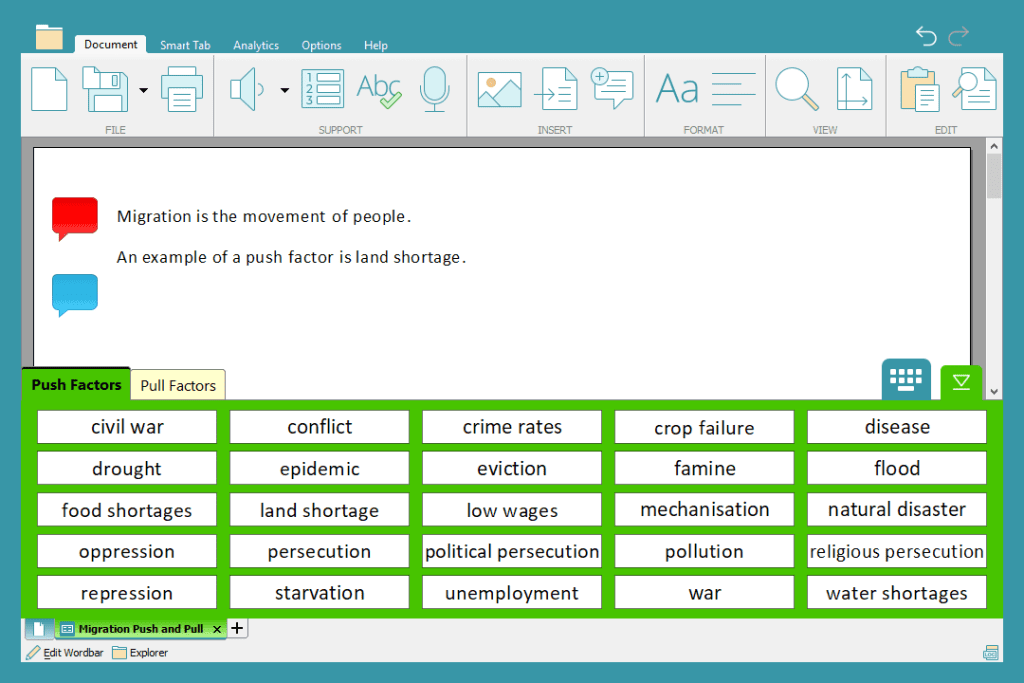
The tools available alongside the Document and Wordbars are fantastic for supporting students’ writing.
Students might start by creating an audio recording using Voice Notes to outline their plan.
They can then turn on the Predictor for writing fluency and spelling support. Once a sentence has been completed, DocsPlus will read it back, ensuring students are checking their work for meaning and clarity.
You can view which tools a student has accessed during their writing by visiting Analytics for a visual representation of their writing process.

To see these features in action, watch the recording from this webinar here.
Need some help with DocsPlus? Schedule a free Customer Care Meeting with one of our consultants to discuss the best ways to implement DocsPlus in your school.
