What you learned:
Introduction to WorkSpace
This is a printable summary
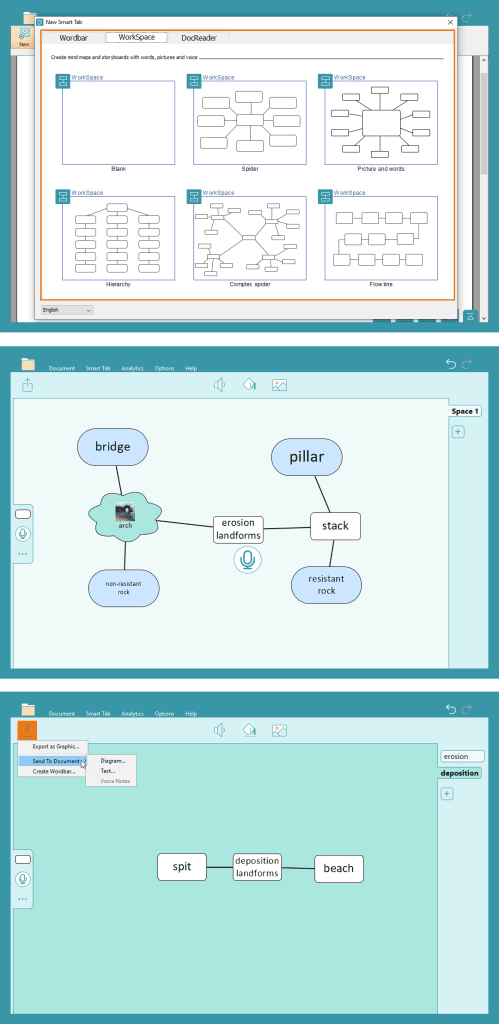
Create a WorkSpace
Use a WorkSpace to help students plan and develop ideas before writing:
- In the Smart Tab ribbon, click New.
- Select the WorkSpace tab and choose a template.
- There are different ways to add a cell to your WorkSpace:
- Drag from
 in the left toolbar on to the WorkSpace.
 - Double-click the background of the WorkSpace where you want a cell to appear.
- Drag from the round handles highlighting a previously placed cell to create a new cell linked to the first.
- Drag on to the WorkSpace to add a Voice Note. Double-click the Voice Note to make a recording.
- Drag from
- Double-click a cell to add text.
- Link two cells by dragging from the round handle on one cell to another cell.
- Click to add a new page to the WorkSpace:
- Move between the tabs to create or access more content.
- Double-click a tab to rename it.
- Click to send your mind map to the Document to support writing in different ways:
- Choose to send your mind map to the Document as a diagram or text.
- Choose to send your Voice Notes to the Document.
- Select Create Wordbar to turn your WorkSpace into a Wordbar.
- In the Smart Tab ribbon, click Save to save your WorkSpace.
 in the left toolbar on to the WorkSpace.
 on to the WorkSpace to add a Voice Note. Double-click the Voice Note to make a recording.
 to add a new page to the WorkSpace:
 to send your mind map to the Document to support writing in different ways:
Edit a WorkSpace
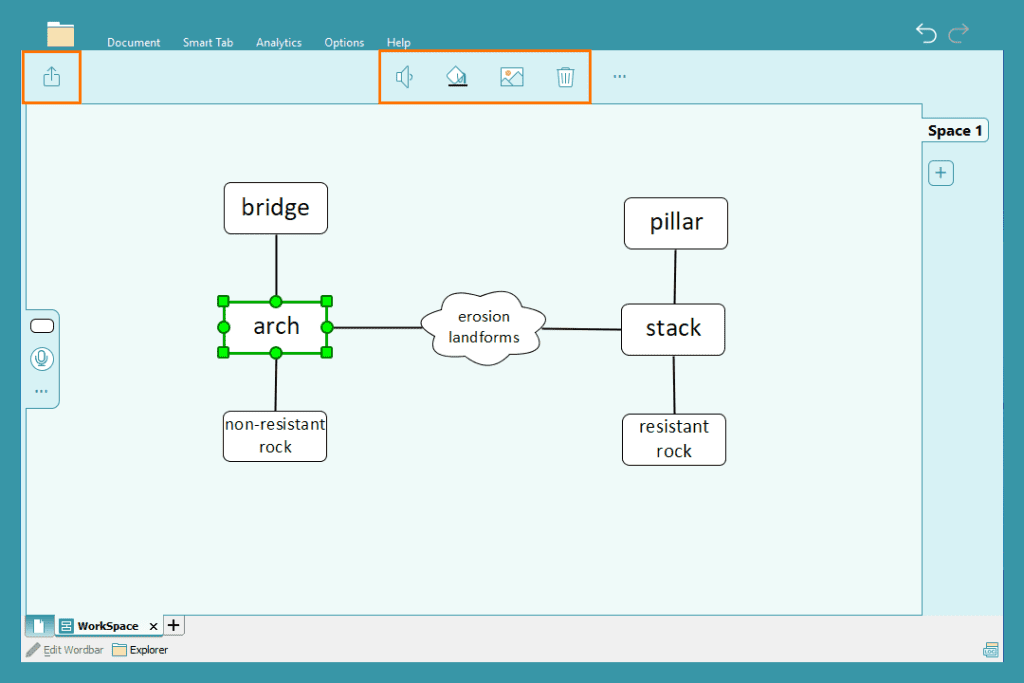
Edit a WorkSpace to organize ideas more clearly:
- Drag the square handles to re-size a cell.
- In the left toolbar:
- Go to with a cell selected and then choose a new shape for the cell.
- Go to
- In the top toolbar:
- Click with a cell selected to add a picture to the cell.
- Choose from images saved on your device or take a photo with your webcam.
- Click with a cell selected to change the color of the cell.
- Click
- Select multiple cells to change their appearance or to move them at the same time. To do this, click them while holding Ctrl.
 with a cell selected and then choose a new shape for the cell.
 with a cell selected to add a picture to the cell.
 with a cell selected to change the color of the cell.