What you learned: printable summary
Create a Cloze Document
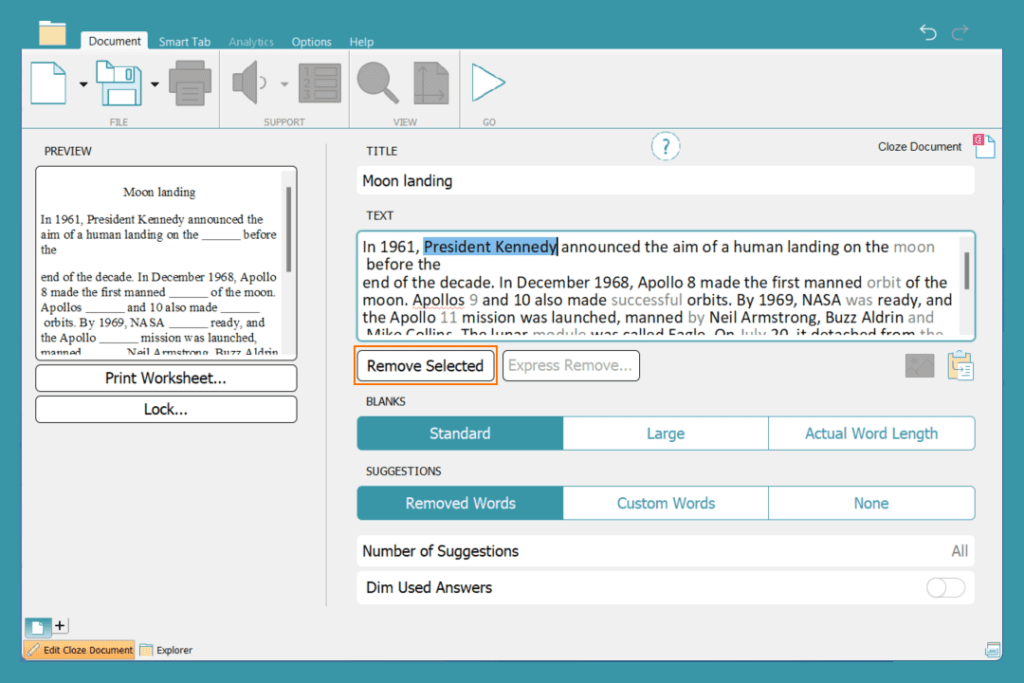
Create a fill the blanks activity using any text:
- In the Document ribbon, click the arrow next to the New Document icon, then choose New Cloze Document.
- Enter a title in the Title box.
- Type or paste text into the text box as a base for your Cloze activity.
- Remove words:
- Highlight a word or phrase of up to three words and click Remove Selected.
OR - Use Express Remove to remove words at a regular frequency, or words that share a letter pattern.
- Choose to leave sentences at the start of the text intact to support with comprehension.
- Highlight a word or phrase of up to three words and click Remove Selected.
- Click Go to use the Cloze activity.
Edit a Cloze Document

Edit a Cloze Document to provide different levels of support for students completing the activity:
- Change the Blanks options to change the size of the blanks that are displayed.
- Change the Suggestions options to show the removed word, to offer custom suggestions or to turn Suggestions off.
- Change the number of Suggestions to limit the number of words offered at a time.
- Choose to Dim Used Answers.
- Click Lock… to add a password to your Cloze Document.
- Click Print Worksheet… to print the Cloze Document with Suggestions displayed beneath it.