With a Clicker subscription, you have access to all three Clicker Apps – Clicker Writer, Clicker Books, and Clicker Talk – on iPads and Chromebooks.
Saving Clicker files

Save a Clicker Document
(Clicker Writer)
Save a student’s Clicker Document to continue their writing later:
- Click
 and choose Save As.
 - Choose in which format you want to save the Document.
- Navigate to your local storage or Google Drive in your file explorer to choose where your Document will be saved.
- Click and select My Files to open a previously saved Document.
 and choose Save As.
 and select My Files to open a previously saved Document.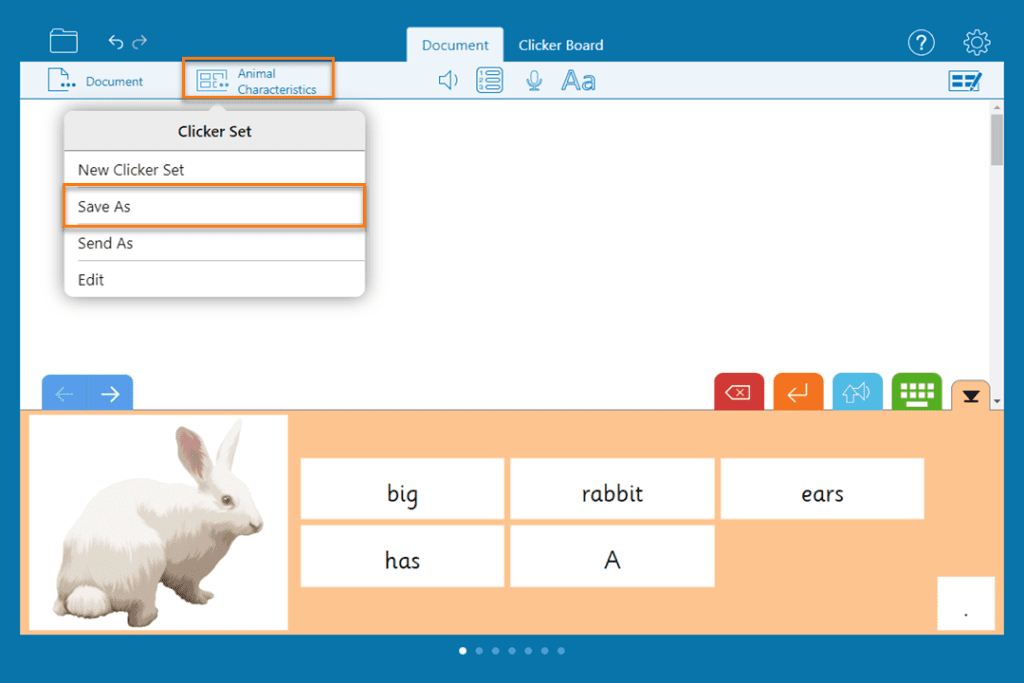
Save a writing grid
(Clicker Writer)
Save a writing grid that you’ve created or edited:
- Click and choose Save As.
- Navigate to your local storage or Google Drive to choose where your writing grid will be saved.
- Click and select My Files to open a previously saved writing grid.
 and choose Save As.
Save a Clicker Board
(Clicker Writer)
Save a Clicker Board that you’ve created or edited:
- Click and choose Save As.
- Navigate to your local storage or Google Drive to choose where your Clicker Board will be saved.
- Click and select My Files to open a previously saved Clicker Board.
 and choose Save As.
Save a Clicker Book
Save a Clicker Book that you’ve created or edited:
- In the Clicker Books app:
- If hidden, click to open the toolbar.
- Click and choose Save As.
- If hidden, click
- Navigate to your local storage or Google Drive to choose where your Clicker Book will be saved.
- Click and select My Files to open a previously saved Clicker Book.
 to open the toolbar.
 and choose Save As.
 and select My Files to open a previously saved Clicker Book.
Save a Talk Set
Save a Talk Set that you’ve created or edited:
- In the Clicker Talk app:
- If hidden, click to open the toolbar.
- Click and choose Save As.
- If hidden, click
- Navigate to your local storage or Google Drive to choose where your Talk Set will be saved.
- Click and select My Files to open a previously saved Talk Set.
 to open the toolbar.
 and choose Save As.
 and select My Files to open a previously saved Talk Set.
Sharing Clicker files
Share a Clicker file to open it on another device or make it available to other staff and learners.
Share via cloud storage
Once you have cloud storage installed on your devices, saving a file using one device will automatically sync it to the others. Chromebooks have built-in support for Google Drive, a cloud storage service. Save in your own Google Drive or a shared Drive through the file explorer to share your Clicker files.

Share a Clicker Document
(Clicker Writer)
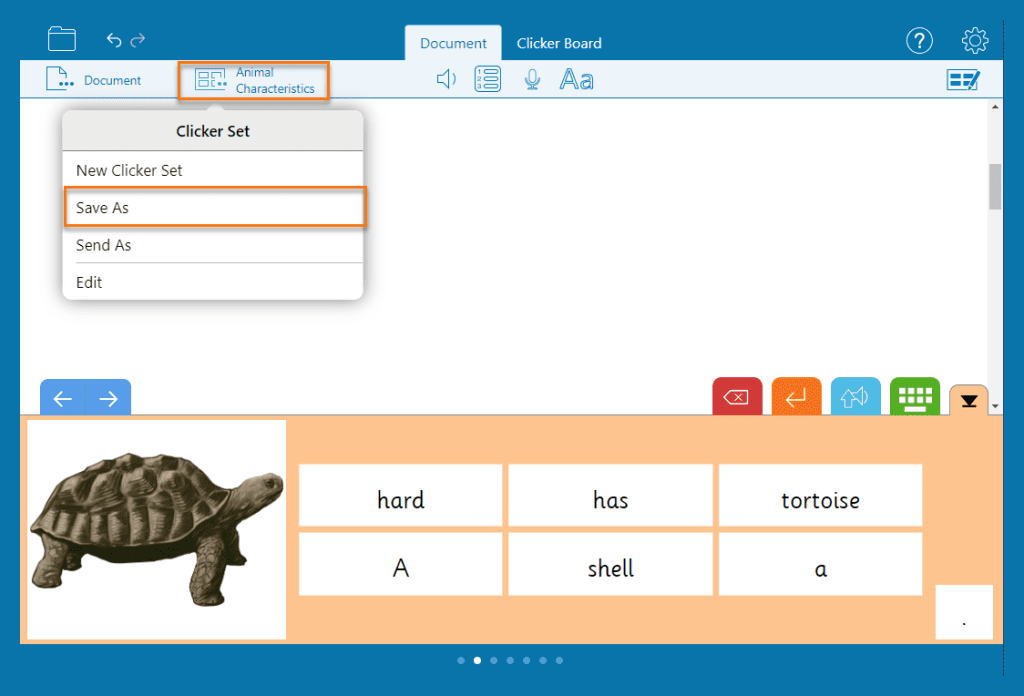
- Click and choose Save As.
- Choose in which format you want to send your Document.
- In the file explorer, select Google Drive on the left.
- Browse to a location in Google Drive and click Save.
Share a writing grid
(Clicker Writer)
- Click and choose Save As.
- In the file explorer, select Google Drive on the left.
- Browse to a location in Google Drive and click Save.

Share a Clicker Board
(Clicker Writer)
- Click and choose Save As.
- In the file explorer, select Google Drive on the left.
- Browse to a location in Google Drive and click Save.

Share a Clicker Book
- Click and choose Save As.
- In the file explorer, select Google Drive on the left.
- Browse to a location in Google Drive and click Save.
Share a Talk Set
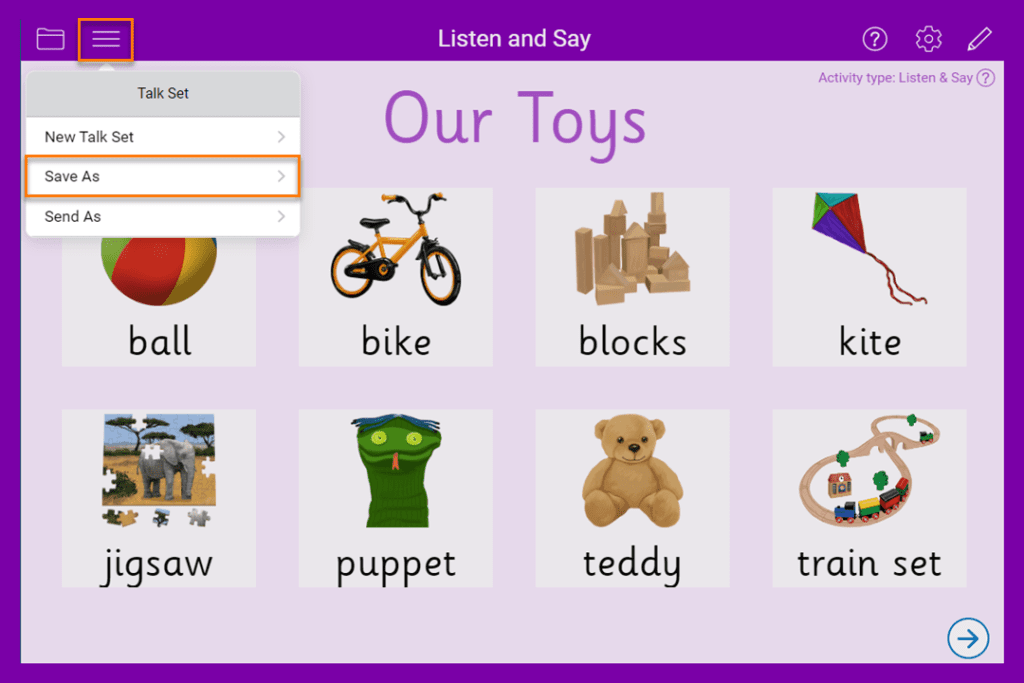
- Click and choose Save As.
- In the file explorer, select Google Drive on the left.
- Browse to a location in Google Drive and click Save.
Top tips

Open a Document or Clicker Set from cloud storage (Clicker Writer)
- Click and choose My Files.
- In the file explorer, select Google Drive on the left.
- Browse to your file and double-click to open it.

Open a Clicker Book from cloud storage
- Click and choose My Files.
- In the file explorer, select Google Drive on the left.
- Browse to your file and double-click to open it.
Open a Talk Set from cloud storage
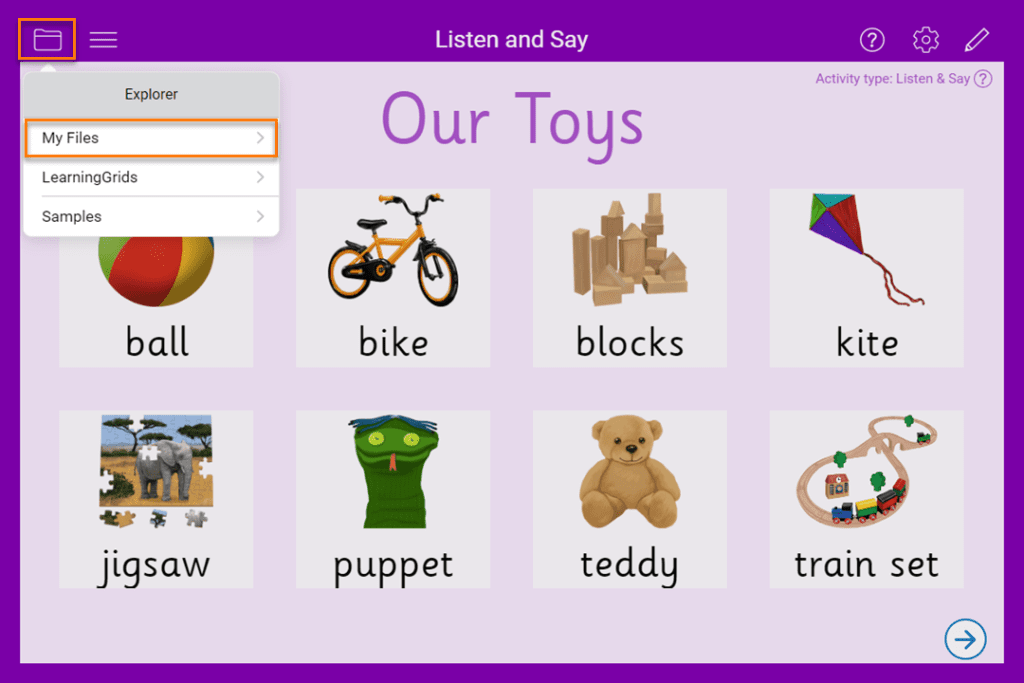
- Click and choose My Files.
- In the files explorer, select Google Drive on the left.
- Browse to your file and double-click to open it.

Print a Clicker Document (Clicker Writer)
Print a child’s work to keep a physical record of their progress:
- Select and choose Print.
- This will then open your print options.
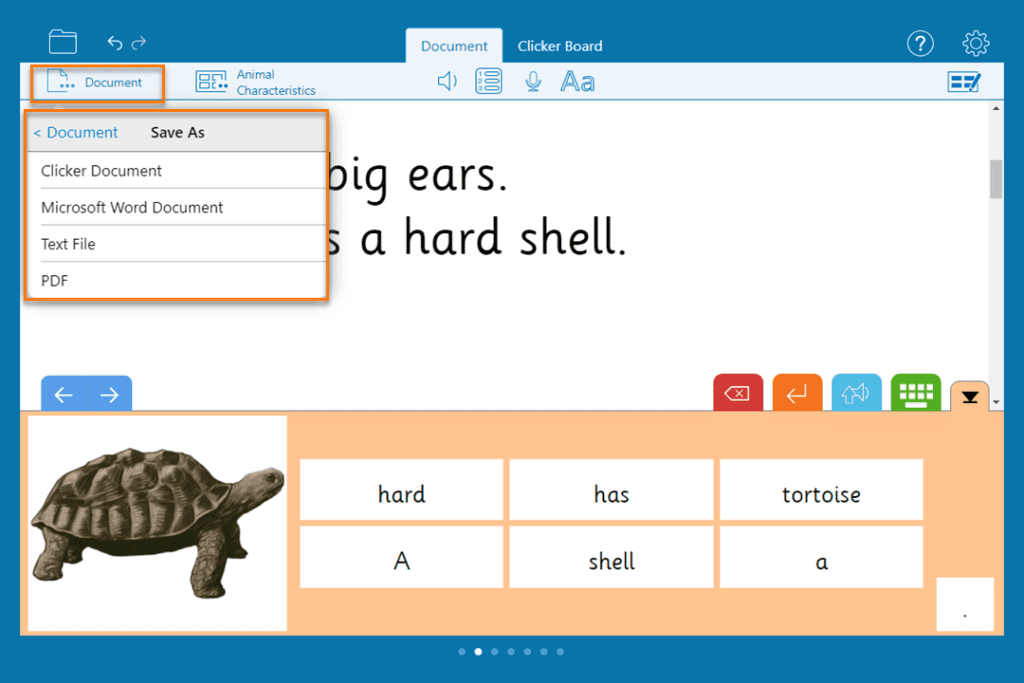
Save as type
(Clicker Writer)
- Click and choose Save As.
- Choose to save your document as a Clicker file, a Microsoft word document, or a PDF.
- If you choose to save as a Word Document or PDF, you will be able to access the document on a device that doesn’t have Clicker installed. However, you will lose any Voice Notes in the document, to keep these, always save your document as a Clicker Document.
Share via Google Classroom
- To share a Clicker file using Google Classroom, attach it to the relevant assignment.
- Download the file before opening it in Clicker.
- See our support article for step-by-step instructions on how to do this.
Share via Microsoft Teams
- To share Clicker files through Microsoft teams, select Attach beneath the box where you type a message.
- Choose whether you want to attach a file from your cloud storage, or from your device.
- Select the file and then select Share or Open, this will upload a copy of your original file.
- If the file you want to share is available in your computer’s file directory, you can just drag it to the message to share it.