What you learned: Printable Summary
Introduction to Clicker Board
This is a Printable Summary
Create a Clicker Board
Use a Clicker Board to help children plan and develop ideas before writing:
- Select the Clicker Board tab in Clicker Writer.
- Select
 in the top toolbar, then choose New Clicker Board.
 - Choose a template to get started.
- There are different ways to add a cell to your Board:
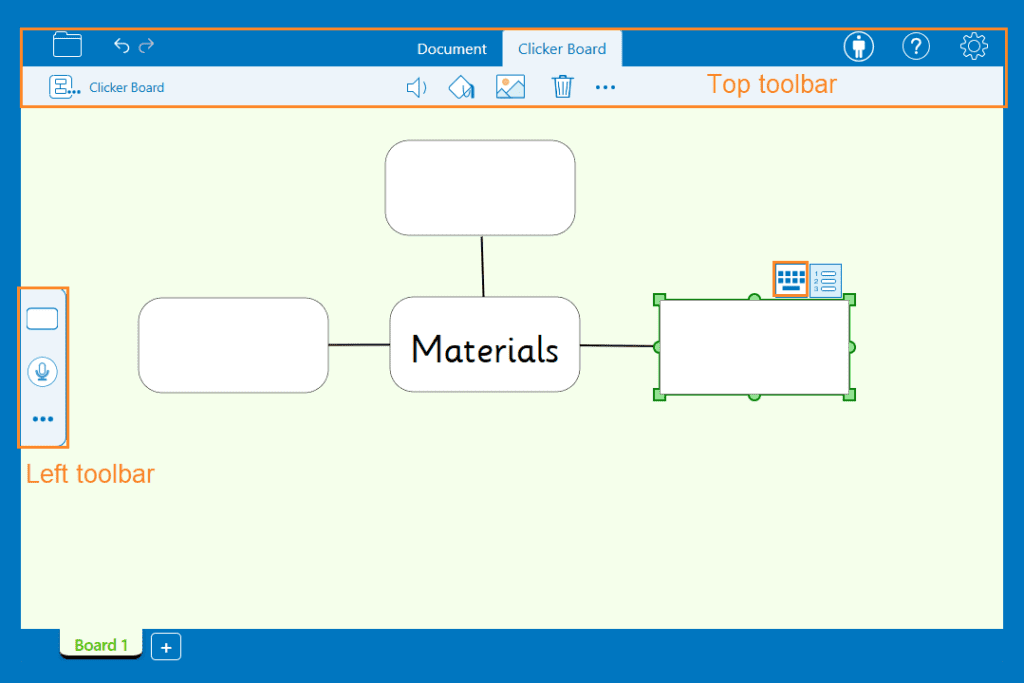
- Drag from the left toolbar on to the Board.
- Double-click or tap on the Board.
- Drag from the round handles of a previously placed cell to create a new cell linked to the first.
- Drag
- Double-click or tap a cell to add text.
- Select to open the on-screen keyboard.
- Drag on to the Board to add a Voice Note. Select in the top toolbar to make a recording.
- Link two cells by dragging from the round handle on to the other cell.
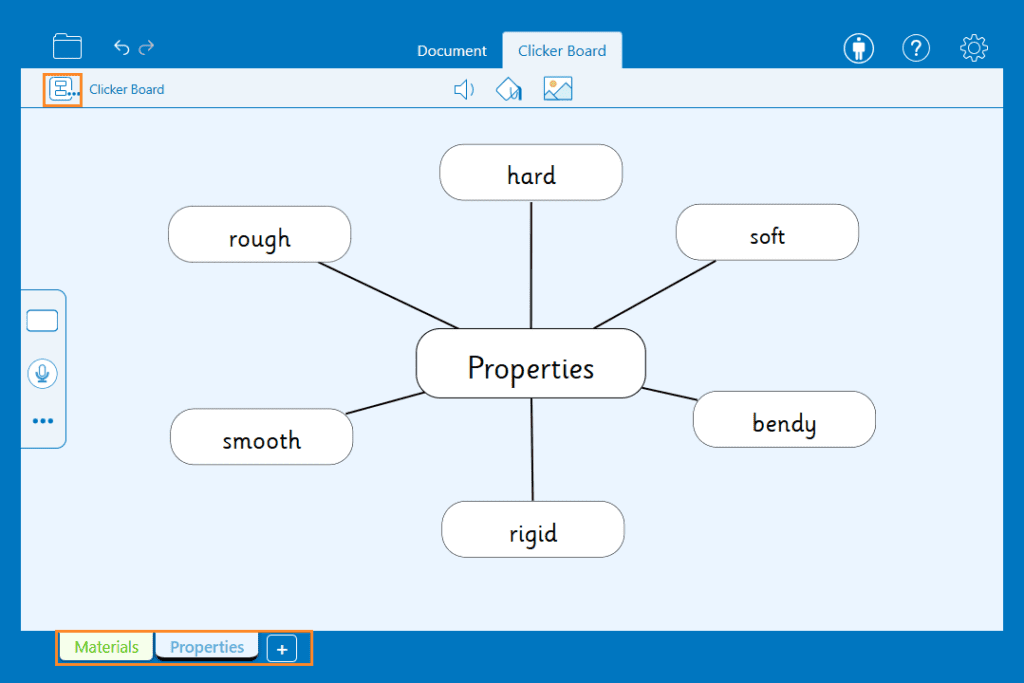
- Select to add a new tab to the Board.
- Move between the tabs to create or access more content.
- Double-click or tap a tab to rename it.
- Go to and select Save As to save your activity. Select Print to print your Clicker Board.
 in the top toolbar, then choose New Clicker Board.
 from the left toolbar on to the Board.
  to open the on-screen keyboard.
 on to the Board to add a Voice Note. Select
  in the top toolbar to make a recording.
 to add a new tab to the Board.

Edit a Clicker Board
Edit a Clicker Board to organize ideas more clearly:
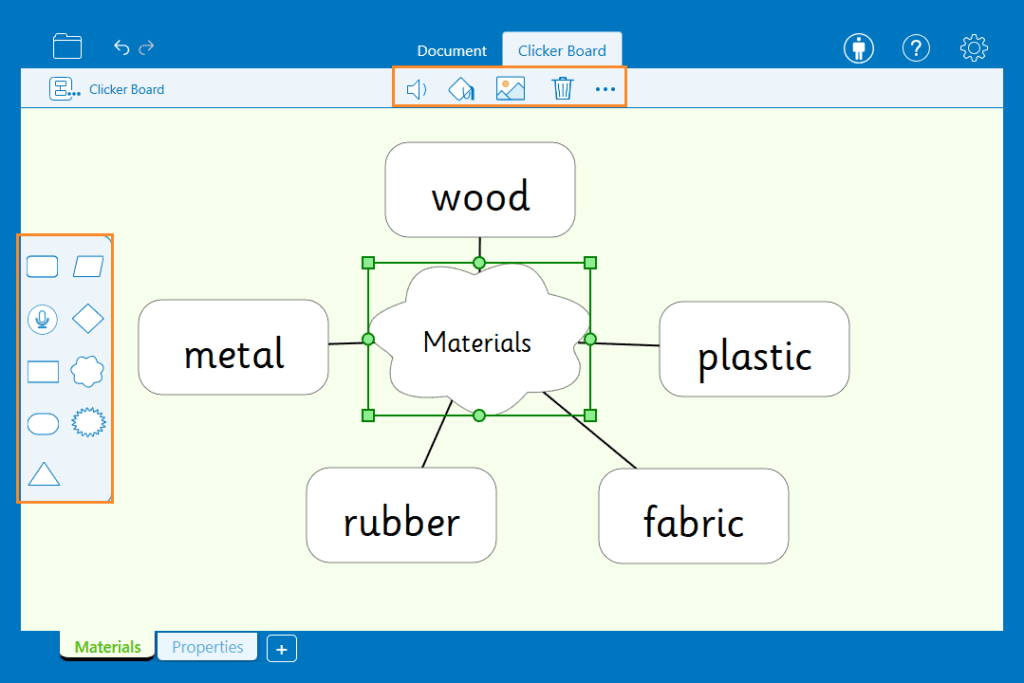
- Drag the square handles to re-size a cell.
- In the left toolbar:
- Go to with a cell selected, then choose a new shape for the cell.
- Go to
- In the top toolbar:
- Go to to change the color of the background and with a cell selected, to change the color of the cell, the text within it and the border.
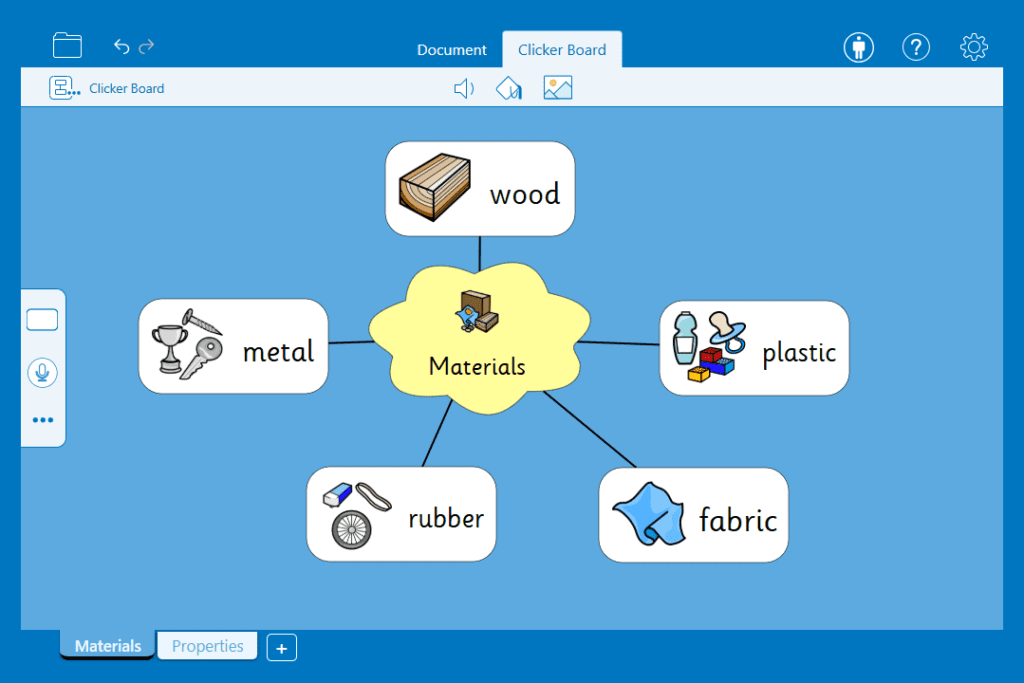
- Go to with a cell selected to add a picture to the cell.
- Choose from images in the CrickPix library, Widgit Symbols, images saved on your device or take a photo with the camera on your device.
- With no cells selected, go to to Picturize your Clicker Board using images from the CrickPix library or with Widgit Symbols.
- Go to
- Select multiple cells to edit them at the same time. You can move them around, resize them, change their color and change their shape.
- Send your Board to the Document to support writing in different ways:
- Go to .
- Choose Send to Document to send a diagram of the board, the text or Voice Notes to the Document.
- Select Create Word Bank to turn your Clicker Board into a Word Bank.
- Go to
 with a cell selected, then choose a new shape for the cell.
 to change the color of the background and with a cell selected, to change the color of the cell, the text within it and the border.
 with a cell selected to add a picture to the cell.