How Clicker’s Predictor supports struggling spellers
In 2005, we introduced Clicker’s Predictor. At the time, it was a real game-changer for students. Many of us now use word prediction every day, but Clicker’s Predictor is quite different from the suggestions we’re used to getting from our phones or word processors.
Intelligent, phonetic prediction
Learners who struggle with spelling will know that most predictors aren’t particularly effective. This is especially true if you don’t know the accurate opening spelling patterns of a word, which isn't always easy in a language like English.
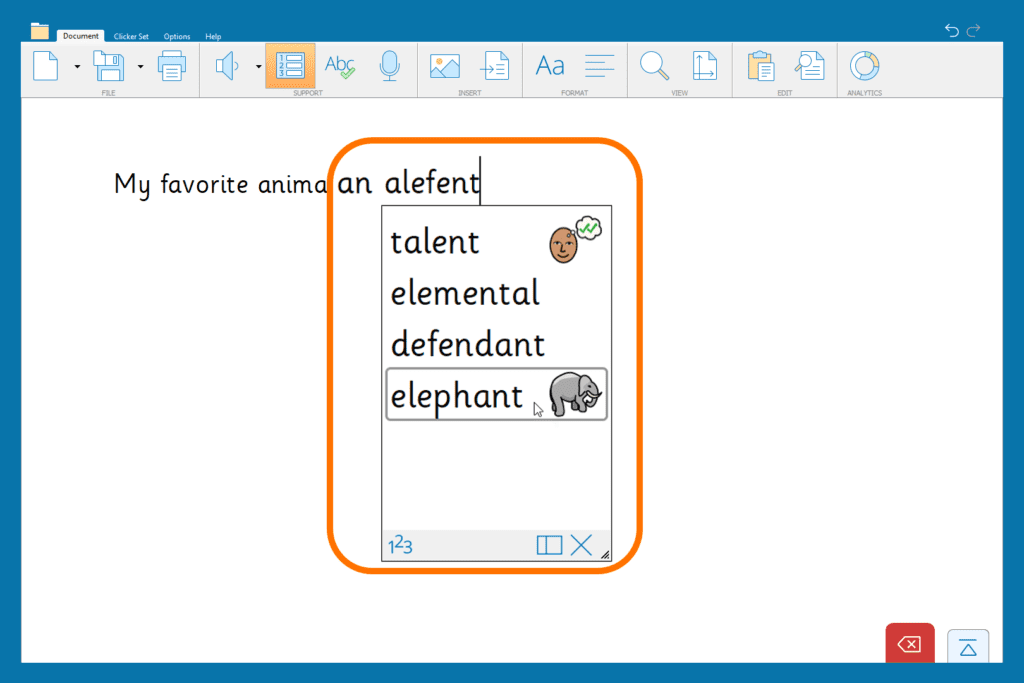
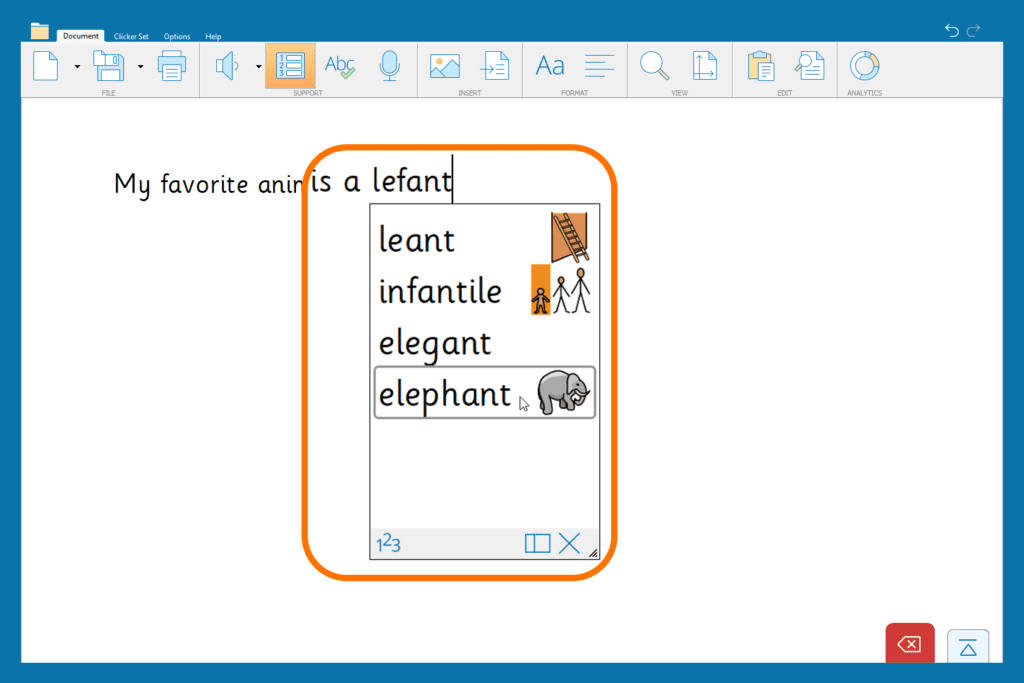
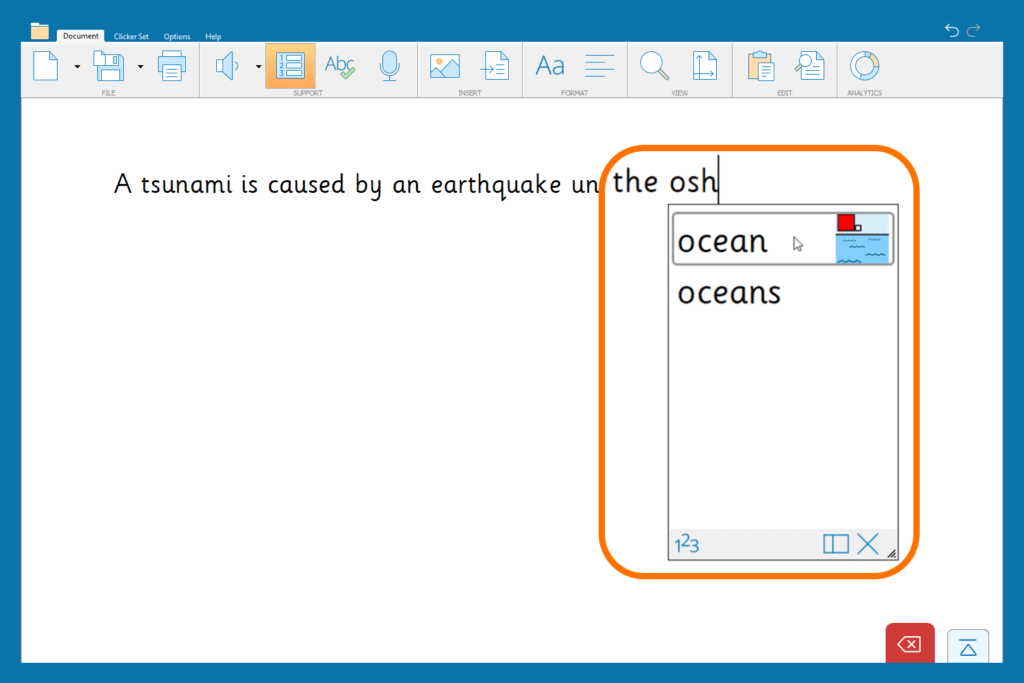
Clicker’s Predictor offers “sounds-like” suggestions. I’ve seen posts on social media describe the below as “the elephant test”. Try typing the word “elephant” with various spellings and see what suggestions you are offered.
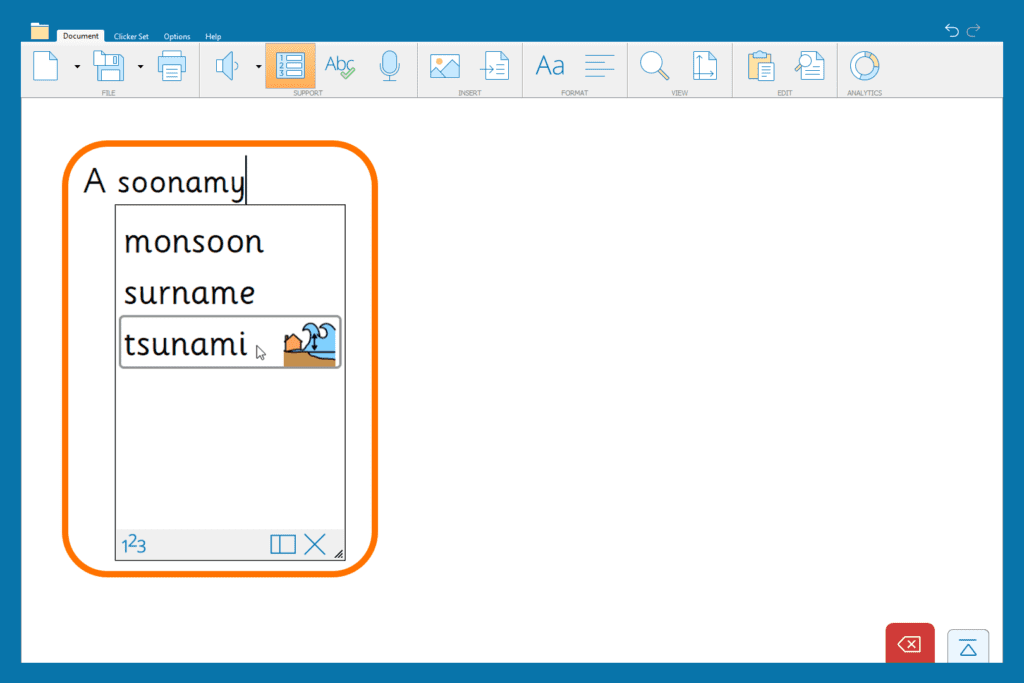
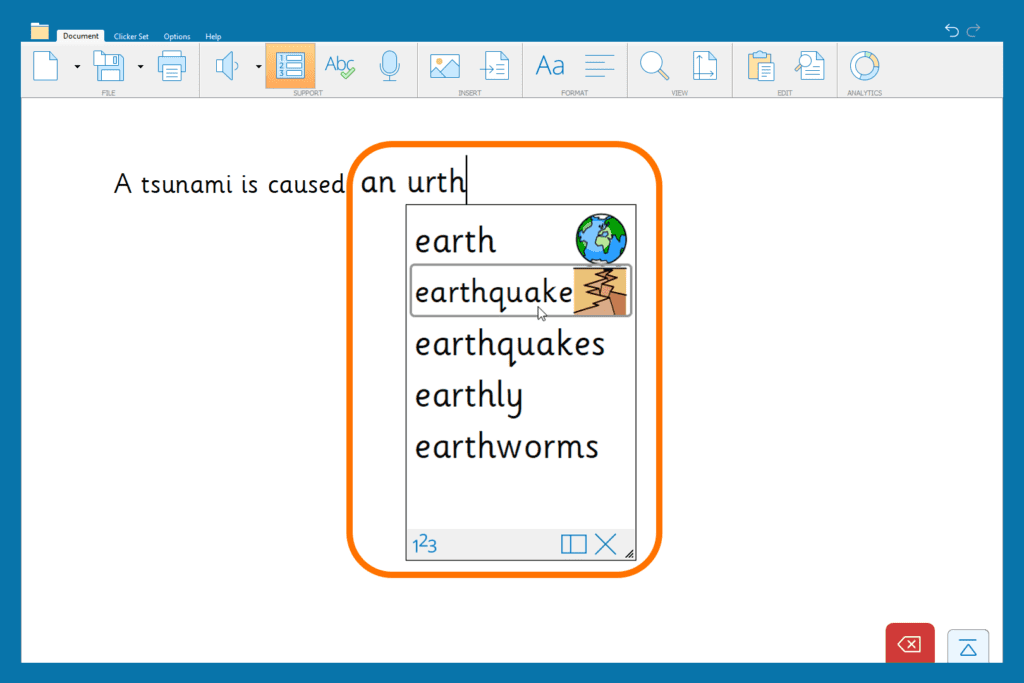
I also often use the example of students writing about Natural Disasters – a subject I enjoyed teaching when I was a class teacher.
Try this sentence with a variety of spellings:
A tsunami is caused by an earthquake under the ocean.
Speech feedback in the Predictor
Conventional word prediction relies on the user being able to quickly read the suggested words, but Clicker has several solutions to help struggling readers.
Users can right-click or use Sound Shift to hear any word read aloud from the Predictor, meaning they know exactly which word they are adding to the Document.
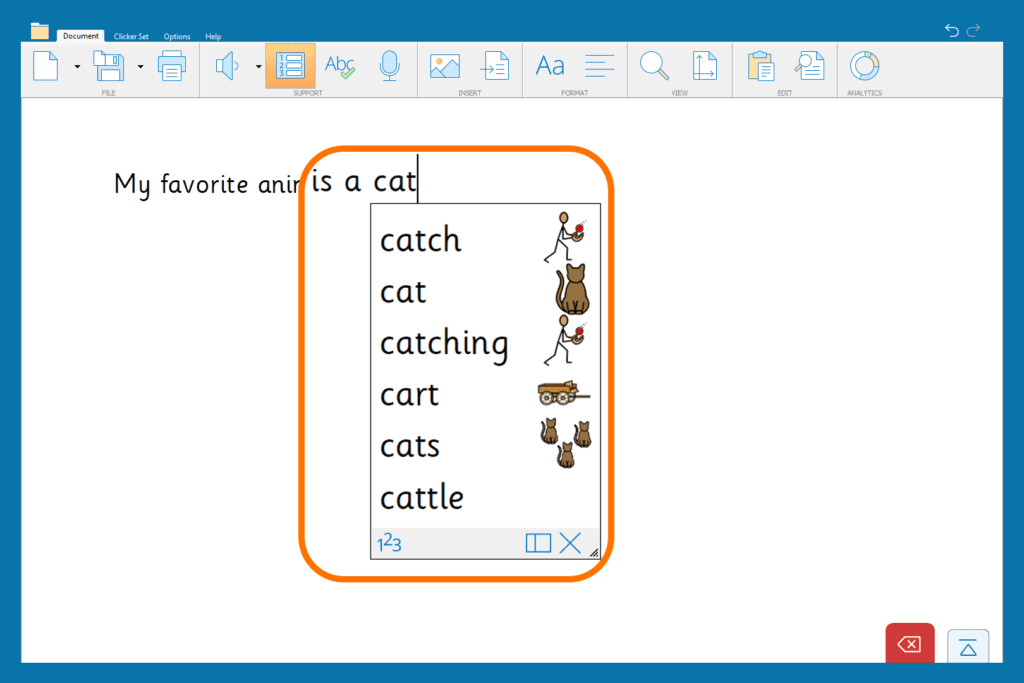
Visuals in the Predictor
You can support students further by adding visuals to the Predictor. Turn on “Picturize the Predictor” in settings and choose which library you wish to use. Don’t forget, Clicker now includes 10,000 Widgit Symbols.
With this feature, students get a great visual reminder of the word they are adding to their Document.
Boost the Predictor with subject-specific vocabulary
This feature lets you customize the Predictor for the lesson you are teaching, encouraging students to use subject-specific vocabulary in their writing. Sticking with the natural disasters example, you probably want the Predictor to offer vocabulary such as “volcano” or “hurricane” much sooner than in other contexts.
To boost these suggestions, open a Word Bank, either from LearningGrids, or create one using the vocabulary that you have been teaching in class. When a Word Bank is open, the Predictor will automatically “boost” these words.
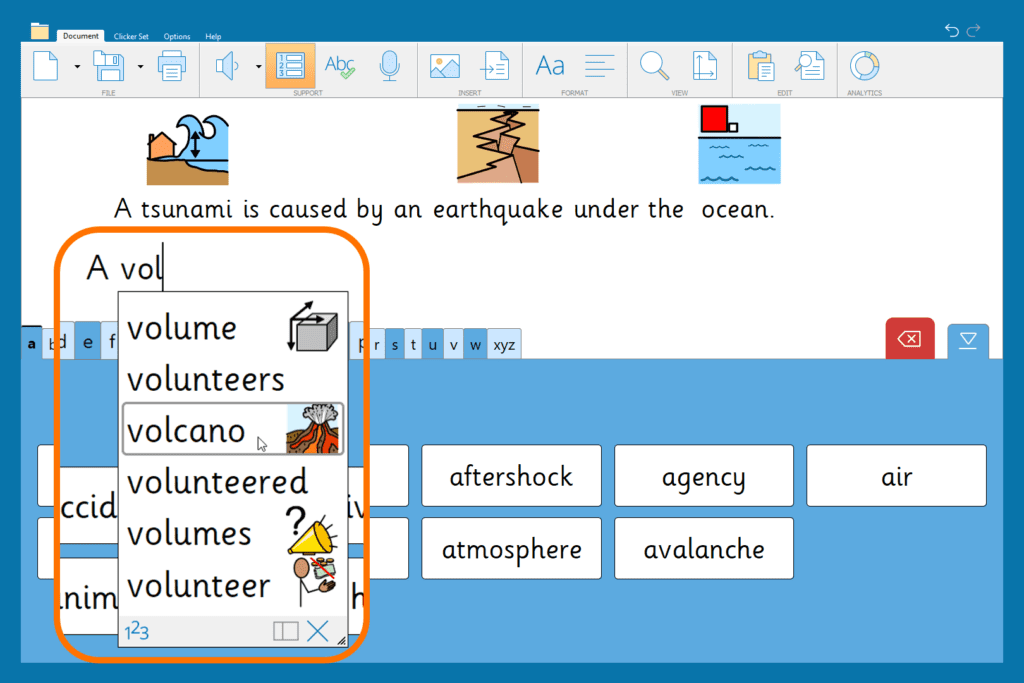
In this example, I have opened the Natural Disasters A-Z Word Bank from LearningGrids, boosting the Predictor with the vocabulary in the Word Bank. This means “volcano” is suggested much sooner than in other contexts. I can add any vocabulary I like to the Word Bank for the Predictor to boost these suggestions and choose whether the Word Bank itself is visible to the user.
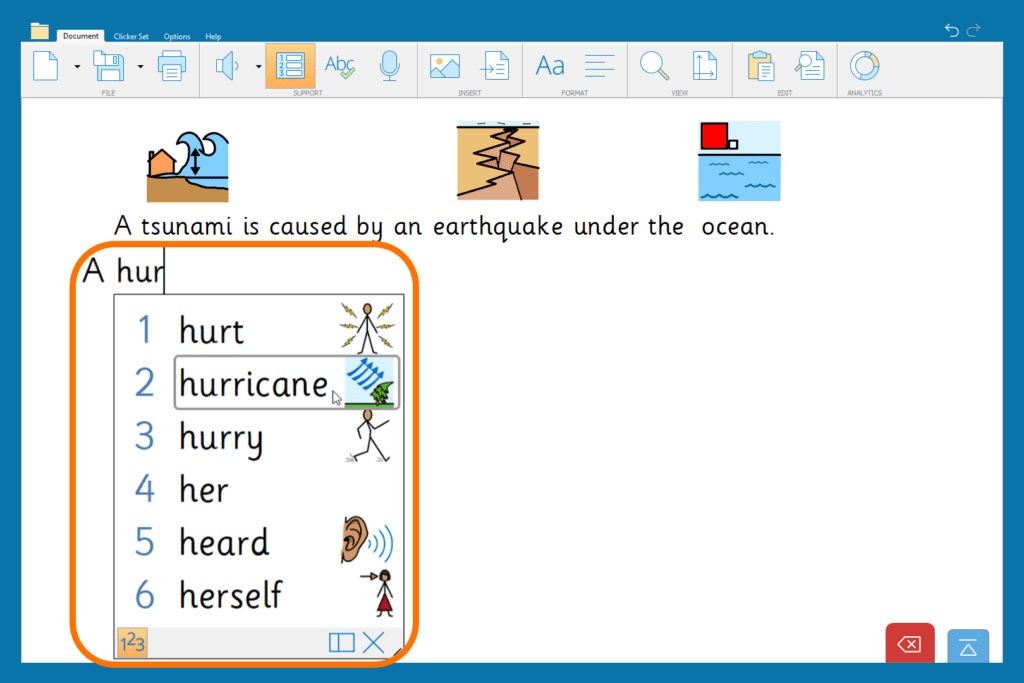
Quickly choose a suggestion from the keyboard
To speed up entering words from the Predictor, enable numbers in the predictor panel. When typing, hit the number on the keyboard of the chosen word. This is a great option for faster typers.
More than your usual word prediction
So not all predictors are created equal! Clicker’s phonetic awareness, speech, and symbol support make it far more friendly for users developing their literacy skills. Plus, you can give the Predictor even greater impact by boosting the vocabulary you have been focusing on in class.
Further help and advice
If you have any questions about using the Predictor or any other Clicker feature, we’re here to help!
For technical questions, you can contact our technical support team. For personalized advice on using Clicker with your learners, you can schedule a customer care meeting.
