Clicker and Widgit Symbols
A library of almost 10,000 Widgit Symbols is now included in Clicker Desktop and Clicker Writer as part of a Clicker subscription.
Widgit Symbols are used to support learning all over the world. We’re pleased to announce that you will now be able to use these symbols alongside the powerful scaffolds built into Clicker!
Symbols in interactive Word Banks
In many classrooms, teachers use Widgit Symbols to help students access complex vocabulary linked to their learning. We’re all familiar with the sight of students referring to teacher-made symbol sheets or looking over to a symbolized working wall as they write.
In Clicker, these symbols-supported vocabulary lists become interactive Word Banks. Students can click to add the word and symbol to their text, saving time copying vocabulary so students can focus on the construction of their texts. Of course, when using their Word Bank in Clicker, students can hear each word read aloud to them – using symbols alongside one of Clicker’s core support features.
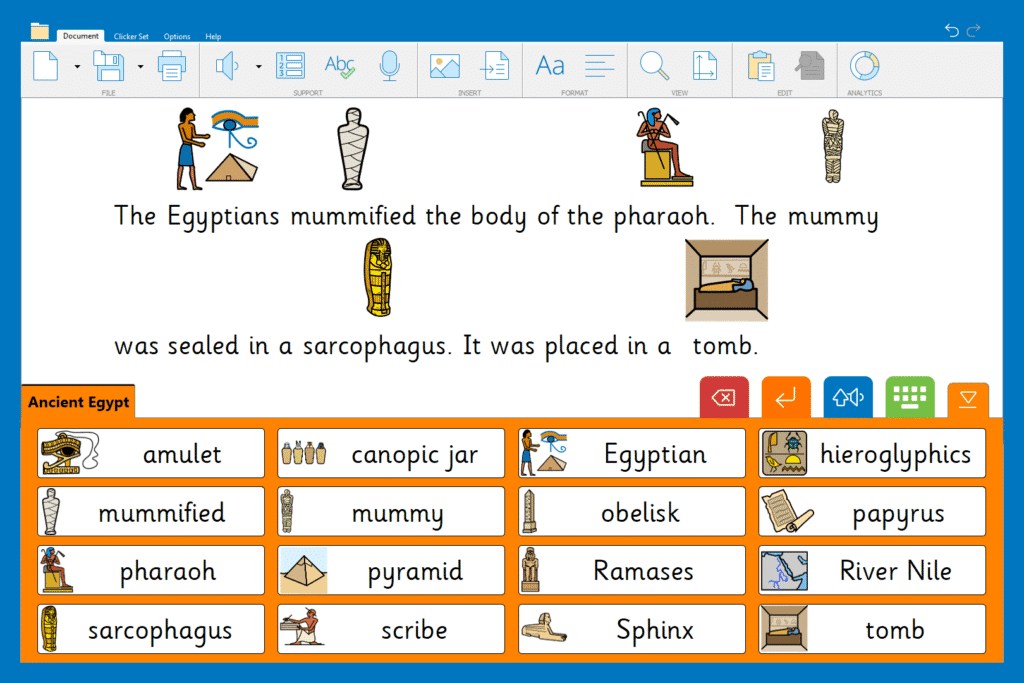
The child here was writing about mummification in Ancient Egypt. To help, the educator created a word bank with key words and added Widgit Symbols.
Turning existing vocabulary lists into Clicker Sets with symbols couldn’t be easier. Copying lists across from planning documents into Clicker is a 1-minute job and adding symbols to the whole Clicker Set can be done in two further clicks. Alternatively, add symbols to one of the thousands of Word Banks already prepared on LearningGrids.
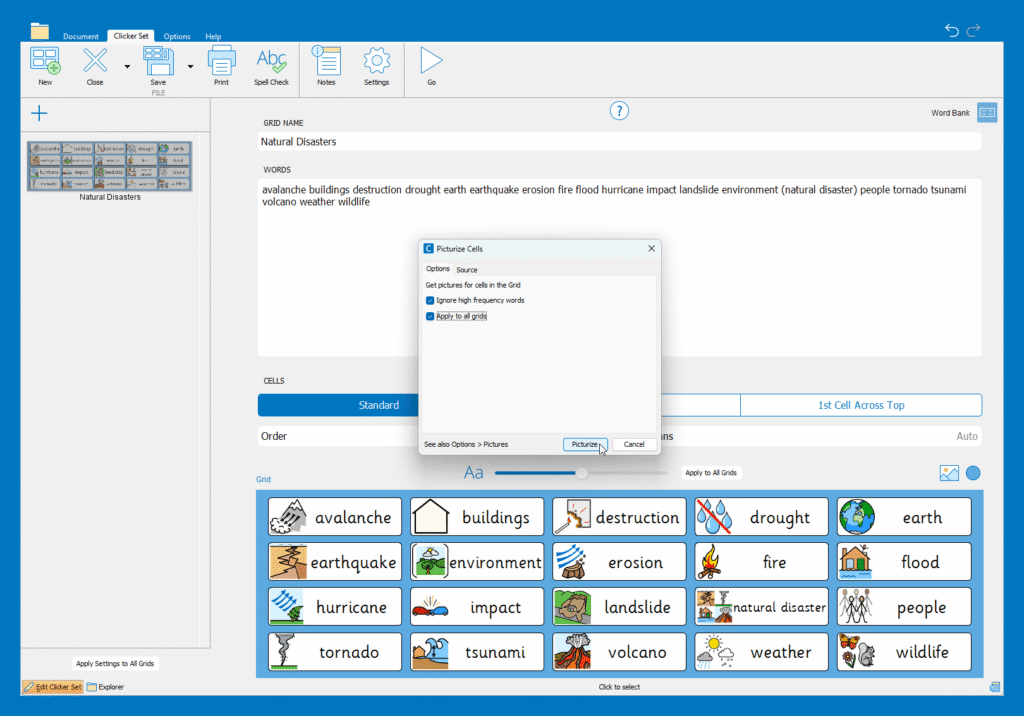
Here I’ve adapted the Natural Disasters Quick Words set from LearningGrids.
Symbols to support sentence construction
Clicker users have long been using Sentence Sets as a scaffold to support students build up an understanding of a simple sentence. For some learners, picking a key concept to structure sentences around can be a great way to see success. Adding a familiar symbol to that concept gives students an extra scaffold when writing.

Here I have chosen a pre-made Clicker Set from LearningGrids and added the Widgit Symbol for favorite on each grid.
Easily adapt how many symbols you want to use
Clicker makes it easy to decide how much symbol support you want to use with your learners. We know that symbolizing every word can be confusing for children. Simply click “Ignore high frequency words” when you are picturizing your Clicker Set.


On the left, every word is symbolized which is often not preferred by students.
On the right, I’ve symbolized the word “favorite” - the concept the child has been working on - as well as the symbols for each sport.
Give students control of symbols
We’ve all seen how powerful symbols are when supporting students read texts in the classroom that we, as teachers, have prepared. With Picturize in Clicker, students can add Widgit Symbols to their own document where they choose. This gives students a scaffold they have chosen when reading back their text.

A child I worked with has a passion for animals. This was his main way of accessing writing. He’ll now be able to use Widgit Symbols in Clicker Writer.
Widgit Symbols in the Spell Checker and Predictor
Often go-to scaffolds for older Clicker users, the Predictor and sounds-alike spell checker (with speech feedback, of course) can now include Widgit Symbols. Students can use these tools independently whenever they choose. For a child I worked with in 5th grade, the Predictor was his absolute favorite scaffold - he went from a reluctant to enthusiastic writer, listening to suggested words before adding to his text.

Picking the perfect scaffold
In Clicker, students can choose which scaffold to access and when. Each student will have their preferred tool, it could be text-to-speech, word prediction, Voice Notes, or the sounds alike spell checker. Widgit Symbols in Clicker provide another tool for students and teachers to call upon to support writing.
How to update:
Clicker Writer
- Chromebook users - the app will update automatically.
- iPad users - iPads with automatic updates turned on will see the new features instantly; if not, update Clicker Writer via the App Store.
Clicker Desktop
Visit Downloads - Crick Software US. For standalone computers, simply run the installation package. For network deployments we recommend uninstalling first before re-deploying. Network installation instructions are here.
