Schools use Google Classroom’s cloud-based platform for students and teachers to share work from anywhere – which helps with remote learning as it can be accessed in school and at home.
Teachers can use the service for assigning work and providing feedback, all while ensuring data security and privacy.
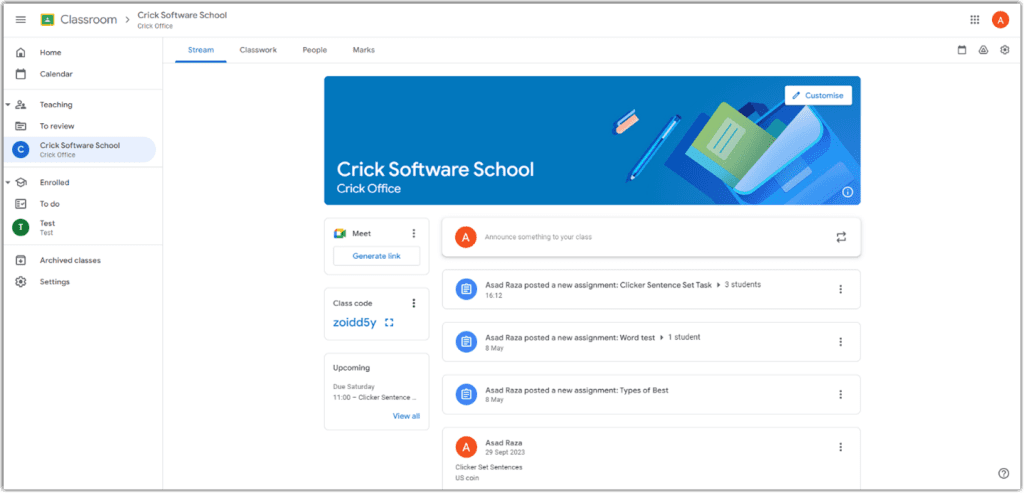
Teachers who use Google Classroom can easily assign Clicker activities for students to complete, and when the students has finished the assignment, they can share their work with their teacher the same way.
Follow these easy steps to assign a Clicker activity on Google Classroom:
1. Create the assignment
Create the assignment in Google Classroom and allocate it to the appropriate students. You may also assign the work to the entire class.


2. Attach the Clicker file
Upload the Clicker file you wish the students to complete - this is easiest done through Google Drive. Remember to select the appropriate editing setting so that the students can complete the work.


3. Send the activity to the students
Once the file is selected with your chosen editing setting, click “Assign” to send the activity to the students.
What do the students need to do?
1. Open the assignment
The student can see the assigned work when they open their Google Classroom. Once they have opened the activity, they need to download the file and choose to open it in Clicker.

2. Send it back to their teacher
When the student has finished their assignment, they will need to save the work through the Document tab in Clicker. This file can then be uploaded to their Google Classroom so that the teacher can review the work.


Further help and advice
Our technical support team are always happy to help if you have any questions or issues during your subscription period. If you need to get in touch, simply call us on 203 221 2697 or complete our online Support Request Form.