In a recent local authority demonstration, I focused on how Clicker can be used to support learners with a range of physical difficulties. Here are a few highlights!
Word processor
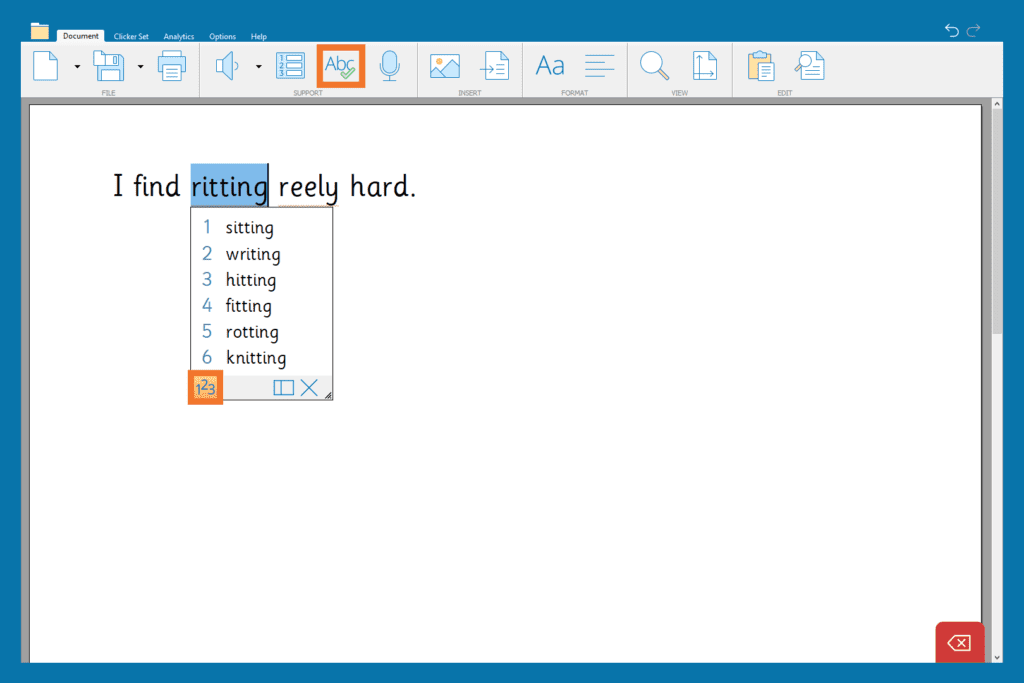
Students who struggle with fine motor skills may find the ‘ABC’ spell checker easier to use. This spell checker can be sized to fit learners' requirements, which means they don’t have to have precise mouse skills to select the option they want. In addition to this, you can also use the ‘123’ button in the drop-down spell checker to number the suggestions shown. Students can then select the suggestion they want using the associated number key on their keyboard instead of having to use a mouse.
For students who struggle with the act of writing, Voice Notes can be highly beneficial. By recording what they want to write about before starting the writing process, they ensure that all of their good ideas aren't forgotten along the way. This means that they can take all the time they need on each section of their writing and can always refer back to their Voice Notes whenever they need to.
The Predictor tool is exceptionally useful for learners with physical difficulties. It enables them to increase their writing output while reducing the number of physical inputs needed to get what’s in their head onto the page. For consistent use of the predictor, using the tile tool to pin it to the side of the screen in Clicker 8 might be preferable as this makes it more prevalent on the screen, while making the cells larger and easier to select. In addition, the ‘123’ button mentioned earlier is available here as well!

Dictation
Dictation can often be very beneficial for students with physical difficulties as it reduces or eliminates the need for physical typing. There is no in-built Clicker dictation tool. However, to support learners who struggle to type or select cells, your learners can use the in-built dictate features available on Windows, Macs, iPads and Chromebooks within Clicker.
Accessibility settings
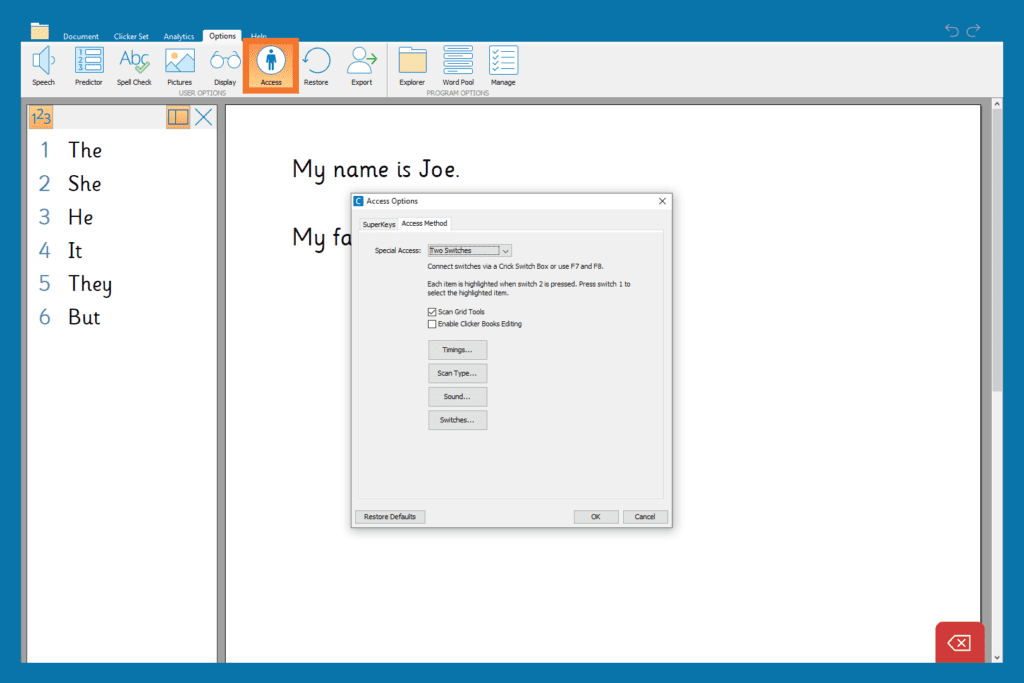
Clicker 8 has many accessibility settings available that enable you to tailor it to meet your learners’ specific needs. This includes compatibility with Eye Gaze, as well as Switch Access.
If you have a learner who prefers to use the on-screen keyboard, then SuperKeys is another accessibility setting that they may find useful. With SuperKeys enabled, the keyboard is split into clusters. When a cluster is selected, all of the letters within that cluster are greatly enlarged and available to select. You can even change the keyboard to have a rainbow layout to make the clusters more distinguishable from one another.

Universal Licensing
When schools are working with learners with physical difficulties, a common concern is what device is going to be best for them. This will differ from learner to learner as their needs and requirements are all going to be different. The good news is that with our Universal Licensing, you have access to Clicker on Windows, Mac, iPads and Chromebooks, giving you a lot of flexibility.
If you would like to find out more about using Clicker to support specific learning needs, please give us a call on 01604 671691 or email info@cricksoft.com.
I have been demonstrating Clicker to lots of schools over the past few months. A common concern shared by many is not being able to train staff to use Clicker due to the increased workload and time constraints caused by the lockdown and months of disruption.
These concerns are quickly put at ease when I guide them through all of our great free training resources.
ON-DEMAND WEBINAR
To start with, I always recommend watching our on-demand webinar. This 40-minute video is ideal for staff meetings. It covers all of the core features of Clicker, as well as some examples of how you might use the software in your classroom. It’s a great introduction for someone who has never seen Clicker before.
TUTORIAL VIDEOS
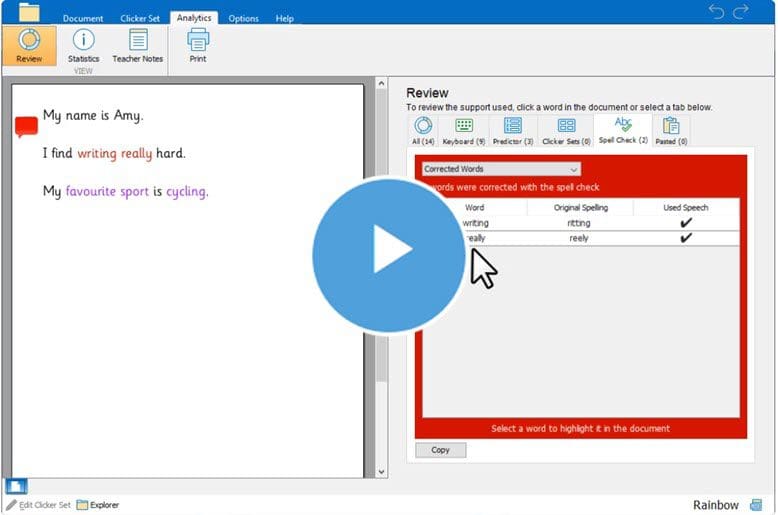
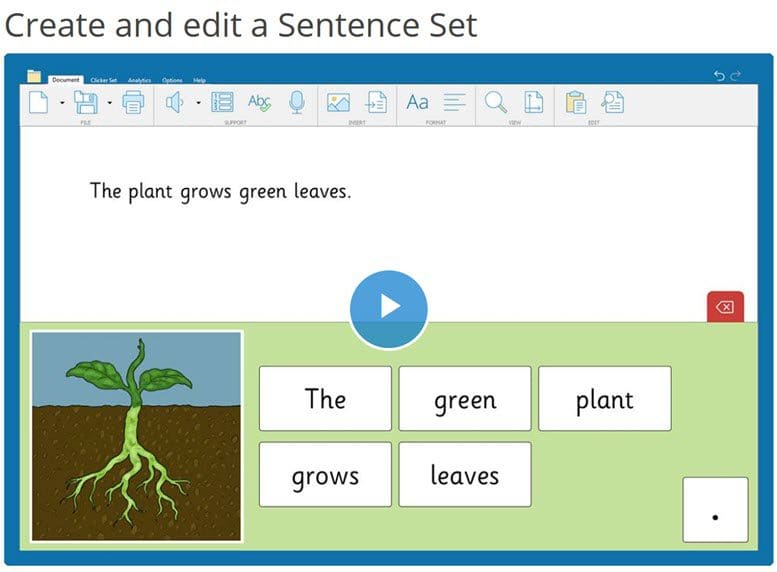
Once you and your staff have watched the on-demand webinar, you should have an understanding of how Clicker works. However, now that you’ve seen the features Clicker has to offer, there might be some which you want to learn more about. We have lots of great tutorial videos on our website that cover each individual feature of Clicker. These videos are bite-sized, which make them ideal if you are in a lesson and just need a quick refresher.
TRAINING GUIDE
Alongside all of our training videos, you can find printable summaries as well. We have combined these summaries into a training guide for you to have in one convenient location. This guide can be printed and is a great way of introducing new members of staff to Clicker as part of a teacher training pack.
BESPOKE TRAINING
We also offer bespoke training sessions. These sessions provide specific advice on how best to use Clicker to focus on your school's current priorities. We would discuss the learners that you intend to use Clicker with, as well as topics that you are currently learning about in school. If you have specific priorities that you would like Clicker to help with, either before you purchase or at any point throughout your subscription, please feel free to contact our Customer Experience Team at training@cricksoft.com and they’ll be able to help organise everything.
With a combination of the above options, you and your staff are now fully trained and ready to use Clicker. But of course, if you would like any additional help with anything Clicker related, you can contact me at 01604 671691 or email info@cricksoft.com.