We have some great news!
Following feedback from our Clicker Communicator users, our team has been working on some exciting updates which have just gone live!
Custom Keyboard Sets
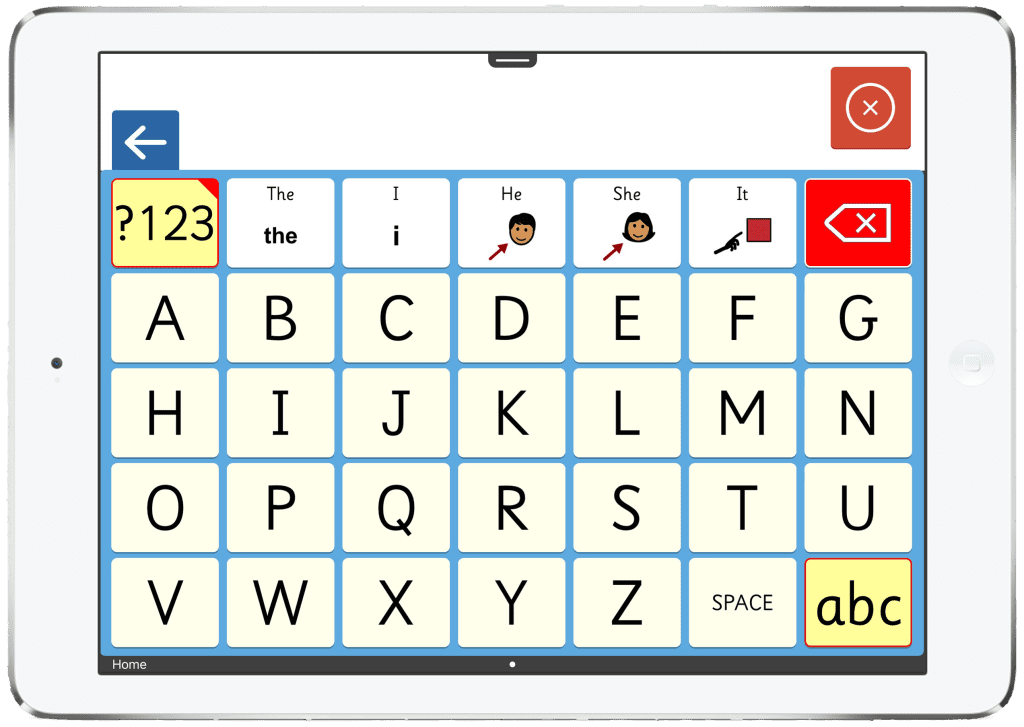
Some Clicker Communicator users need to use a keyguard to access their iPad – the layout of the keyguard is designed to work with the Core Sets. However, the keyboard uses a qwerty layout which does not align with the keyguard.
So, in our latest update, you can now create your own custom Keyboard Sets to use in Clicker Communicator with a keyguard.
What else is new in the latest version?
To enable the creation of Keyboard Sets, we needed to make changes to our editing options. I have outlined some of the key changes below.
1. “Edit View” changes for cells
Option to not send a space
You can now choose to not automatically add a space after content from a cell has been sent to the message area. This allows you to type out words adding a letter at a time without a space being added between each letter.
Ability to show Predictor content in a cell
To be able to use the Predictor while typing using your keyboard, we have added an option that allows for Predictor content to be shown in a cell. This means, selected cells in your Keyboard Set would behave as an intelligent word predictor, offering vocabulary based on the letters added to the message area.
Add cursor commands
To be able to make changes to text already added to the message area, we have added the option to add cursor commands to cells. This allows you to direct Communicator to move the text cursor forwards or backwards one character or word at a time.
Autocapitalization
By naming a grid “Upper case” or “Lower case,” Communicator will be able to automatically capitalize in the message area based on context.

2. Settings menu
Alongside these changes to Edit View, we have also made changes to the options available in the Settings menu to allow you to select a custom Keyboard Set as your default keyboard. This option can be found in the Accessibility options.
3. Ready-made Keyboard Sets
To help you get started with custom Keyboard Sets, we have provided some ready-made Keyboard Sets. You can find these in the Vocabulary Set Safe after you’ve updated the app. Editing one of these is a great place to start experimenting with Keyboard Sets.
How do you access the update?
This update is free for all Clicker Communicator customers.
- On your iPad – open the App Store.
- Tap on your account icon in the top right-hand corner.
- Scroll down until you see the Clicker Communicator app listed.
- Tap the “update” button.
We’re here to help!
If you need any assistance updating to the latest versions, contact our technical support team. If you have any questions about the new tools and features we’ve introduced, please email our Customer Experience team at via training@cricksoft.com.
The team has been hard at work updating our software and apps and I’m pleased to announce that we have just released new versions of Clicker, Clicker Writer, and Clicker Books. A lot of the changes that we’ve made are based on customer feedback and feature requests, so please do keep talking to us so that we can continue to make Clicker even better!
These updates are free for all Clicker subscribers:
- Clicker Desktop users – Visit Downloads - Crick Software US. For standalone computers, simply run the installation package. For network deployments we recommend uninstalling first before re-deploying. Network installation instructions are here.
- iPad users – Open the App Store app, tap on your account icon in the top right-hand corner, and scroll down until you see the Clicker Writer and Clicker Books Apps listed. Tap the ‘update’ button.
- Chromebook users - A pop-up should appear in the app informing you that an update is available – click OK/yes. If it doesn’t, just close and relaunch the app to force the update.
So, what’s new in the latest versions?
Whilst all of the adjustments that we’ve made are important, I wanted to highlight some of the key changes that have been made to the Windows/Mac version and the Clicker Books App:
Eye gaze enhancement (Win/Mac)
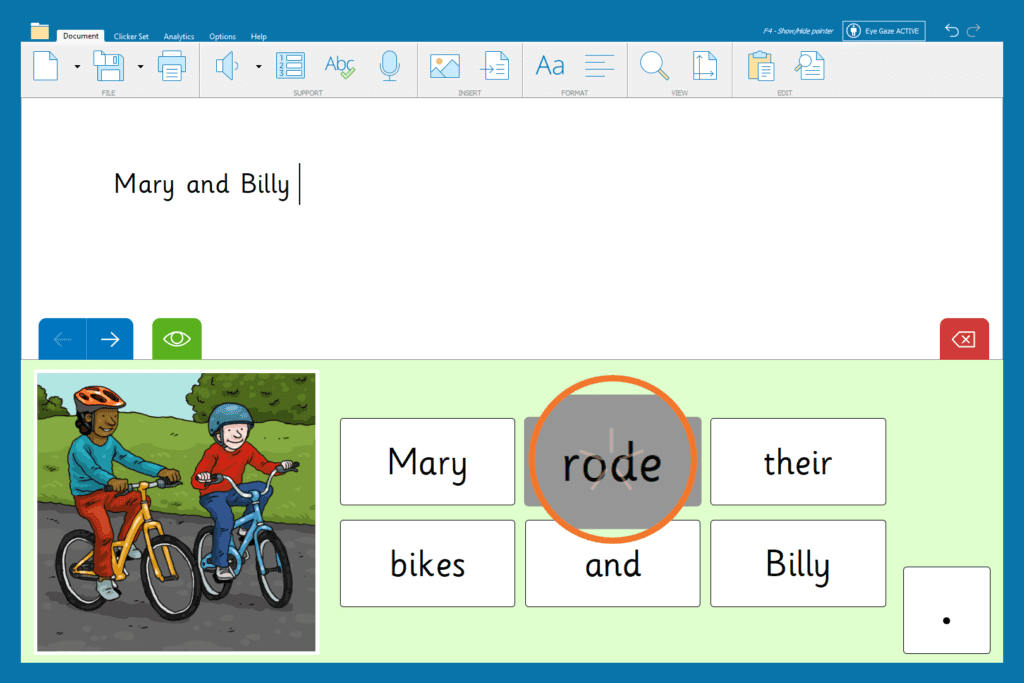
When eye gaze users hover over a cell in a Clicker Grid, a ‘starburst’ animation will now appear on that cell to indicate that an action has been triggered (for example, the action of sending that word into the Clicker Document). When you’re concentrating on looking at a particular cell, you may not see your word actually go into the Document above, so this immediate in-cell feedback reassures the user that they have achieved their intended action.
Customising font sizes in Clicker Sets (Win/Mac)
It’s great that you can adjust the font to whatever size your learner needs in a Clicker Document, but we’ve had a lot of requests to be able to do this in Clicker Sets as well, particularly writing grids such as Sentence Sets, Connect Sets and Word Banks.
In Display > Display Options > Fonts, simply click on ‘Maximise cell font size’ and use the arrow keys to click or drag the number on the font slider up or down to the size that you want (you can also access this font slider in the ‘Edit View’ of a particular Clicker Set that you’re working on). This is a great way to make activities more accessible for visually impaired learners.

Clicker Board (Win/Mac)
We have a couple of exciting new options within Clicker Board:
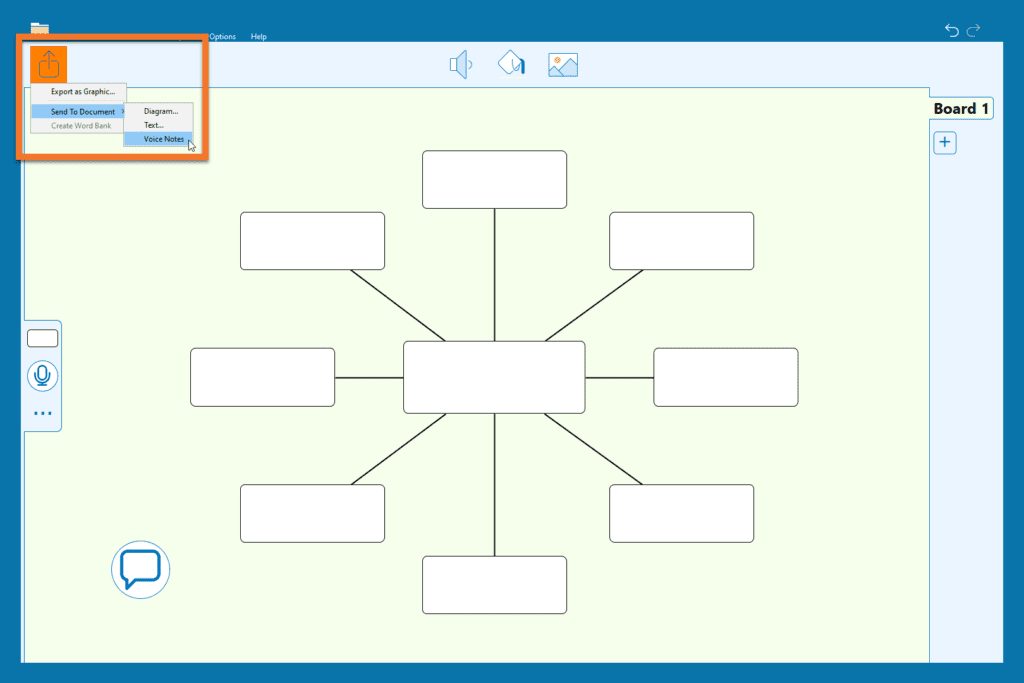
Firstly, you can now send Voice Notes that you have recorded as part of your Clicker Board into your Clicker Document. You’ll see that this option has been added to the ‘Send to Document’ menu alongside ‘Diagram’ and ‘Text’.
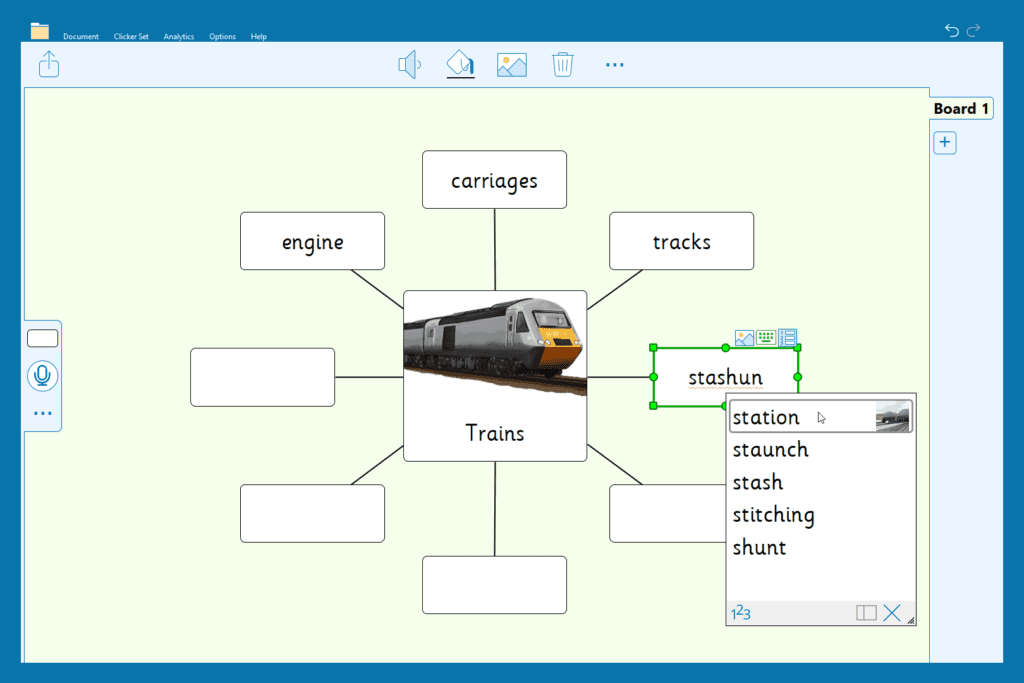
Secondly, our Spell Check tool is also now available in Clicker Board. When you’re editing a cell, if a word is spelt incorrectly, you’ll see the familiar red squiggly line - just right-click on it to bring up your menu of potential corrections. Part of what makes Clicker really special is having this built-in support that students can independently access throughout the writing process, whenever they need to!
Clicker Books (Win/Mac/iPad/Chromebook)
Last, but certainly not least, let’s take a look at what’s changed in Clicker Books (both the Windows/Mac version and within the Clicker Books App).
Click on the three dots in the blue left-hand menu bar to reveal some new objects that you can add to your Clicker Books. These include ‘page turner’ buttons for moving forwards or backwards through the book, which can be added anywhere on the page, and easily enlarged. These buttons are much easier to see and select than the standard arrows at the bottom of the page, making them much more accessible for users who are visually impaired, touch screen users, and learners accessing books with an eye gaze device.
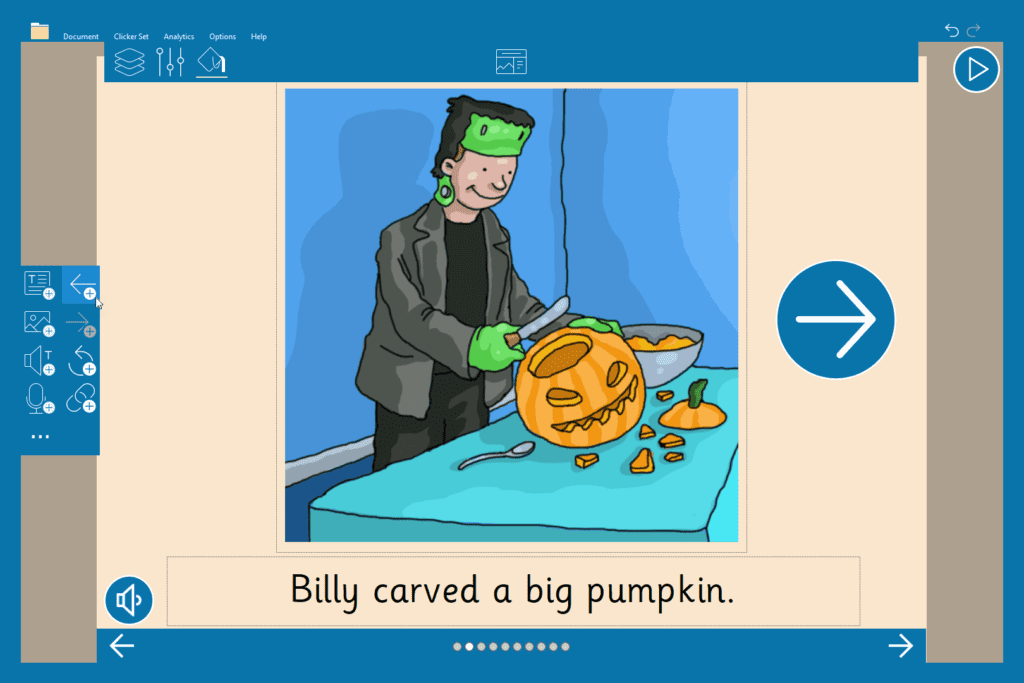
Another useful object that we’ve added here is the ‘link’ object. This enables you to add links to your books that learners can select to ‘jump’ to another section of that book. In this example, we’ve created a picture menu for the front page of our ‘Animals of the Savannah’ book so that students can jump to the animal they’d like to learn/write about first! You could also create some fantastic ‘branching stories’ using this object (keep your eyes peeled for a future blog post on this from our Customer Experience team!).

Finally, a real ‘wow’ moment! When we make our collections of resources for LearningGrids, we often pair a Clicker Book with a connected Sentence Set that enables students to recreate that story sentence by sentence. Now, when you create a Sentence Set, you have the option to also save this set as a Clicker Book! Simply go to the ‘Clicker Set’ ribbon, select ‘Save As’ and choose ‘Clicker Book’ from the ‘Save as type’ drop-down box.
We’re here to help!
If you need any assistance updating to the latest versions, contact our technical support team. If you have any questions about the new tools and features we’ve introduced, please email our Customer Experience team via training@cricksoft.com, or book in a free customer care meeting to explore them in more detail.
Are you using Google Workspace for Education?
If so, you may be aware of the ‘app access control settings’ feature, which enables you to control which third-party apps your users can sign into with their Google Workspace for Education Account, and the data those apps can request.
As a data protection measure, Google has announced that starting from October 23rd, 2023, users designated as under 18 won't be able to access third-party apps you haven't confirmed access settings for.
So, to ensure that your students’ access to the Clicker Apps isn’t interrupted, the Google Workplace Administrator for your organization’s account will need to review your current settings in the Admin console before this date, and check that you have set each Clicker App to ‘Trust’.
If you’re not sure how to do this, Google has put together a handy video and step-by-step guide here.